FLIGHTSEEING / FIRST FLIGHT
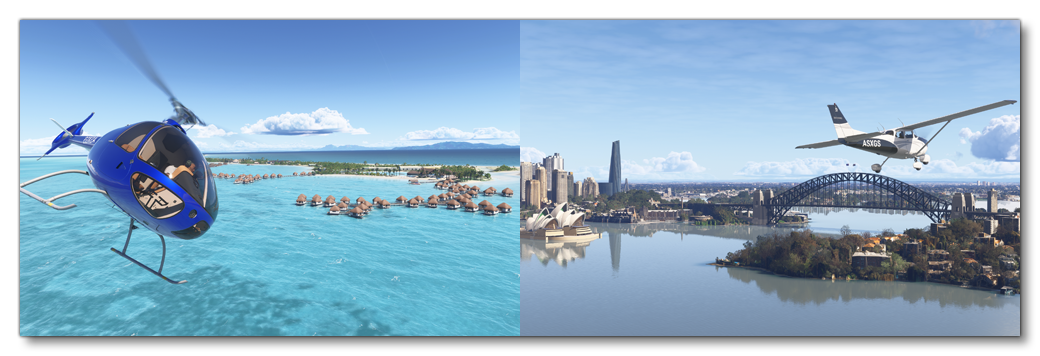
One of the activities available to users in the Microsoft Flight Simulator 2024 career mode, is to run "flightseeing" tours. These are relaxed flights that take passengers on a sightseeing tour of various important POI around the world, giving a new perspective on famous places as they are seen from the air. The setup for the flightseeing activity is also the same as that used for the "First Flight" activity, which is an activity novice pilots can participate in and is a relaxing flight taking passengers for a flight from a local airport. If you wish your aircraft to be used on these activities you will need a preset that has been appropriately set up as part of the Modular SimObject, as explained below.
For more information on the various career activities and how to prepare your aircraft, please see here:
Flightseeing Constraints
Aircraft that are to be used for Flightseeing (and First Flight) activities must be small in size with the following basic requirements:
- The aircraft will need to have the
navigation_graph_pilot.cfg(as explained here). - The aircraft will need to have the
Apron.fltandApronWithoutCovers.fltfiles (as explained below). - The
operating_statusmust be either "in_service" or "experimental". - The aircraft cannot be flagged as military.
- The aircraft cannot be flagged as premium.
- The aircraft cannot have a copilot.
- The aircraft
ui_max_rangemust be greater than 1. - The passenger navigation graph must be set up for at least one passenger, up to a maximum of five (ie: between 1 and 5 nodes with the
SITtag, as explained below), and also have the corresponding number ofRTC_TOUR_EXTERIOR_WAIT_PAXandRTC_TOUR_EXTERIOR_START_PAXnodes.
Additional constraints exist for planes:
- The
targeted_specializationsmust include theFIF-PLNdressing code for it to be eligible for the first flight missions, and/or it can include theTOR-PLNto be available for flightseeing missions. - The
object_classmust be "Airplane". - The plane must be a light aircraft with a piston or turboprop
engine_type. - The number of engines cannot be greater than 1 (as defined by the number
Engine.Nparameters). - The aircraft complexity must also be simple, as explained here: Note On Aircraft Complexity.
- The plane can have wheels or big wheels or floats with wheels, for landing gear.
- The plane cannot have skis or only floats for landing gear.
Additional constraints exist for rotorcraft:
IMPORTANT! Rotorcraft can be used for flightseeing only. First flights will always use a plane.
- The
targeted_specializationsmust include theTOR-ROTdressing code. - The
object_classmust be either "helicopter" or "tiltrotor". - The rotorcraft can have skids or wheels for landing gear.
- The rotorcraft cannot have Floats.
Following these constraints will give the aircraft the COF_Cabin type. See here for more information:
Mission Flow
The flow for both firstflight and flightseeing missions is as follows:
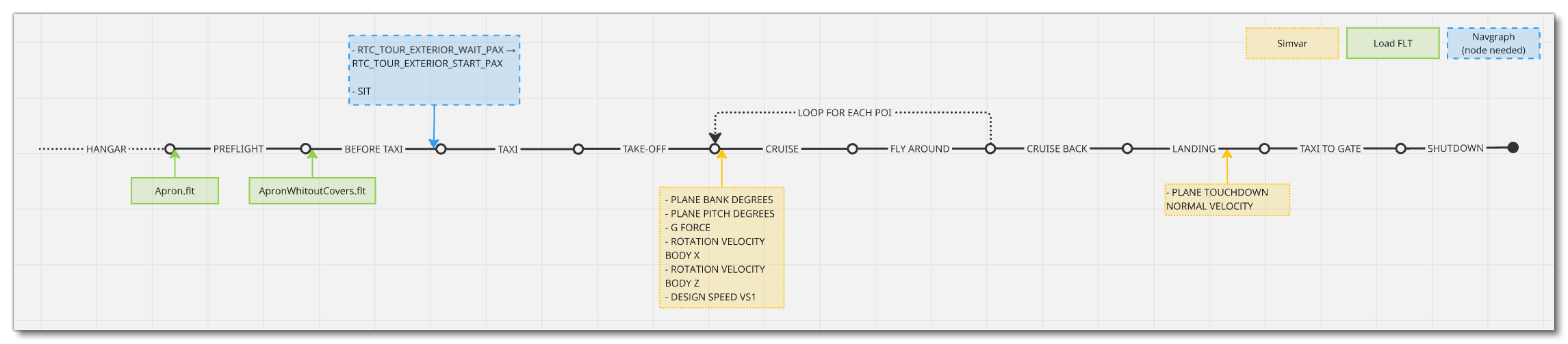
This flow will also require the aircraft to be setup for - and follow - the General Career Mode Requirements.
SimVars
While not directly influencing the mission flow, the following SimVars are important for ensuring a smooth user experience without frustrations. These are what are used in the simulation code to decide whether the user should receive a penalty on their mission score or not, and as such, particular attention should be paid to ensure that these are always returning correct values.
| Penalty | SimVar | Description |
|---|---|---|
| Smoothness Score | PLANE BANK DEGREES |
This is used to check the banking angle of the aircraft while performing the first flight / tour. |
PLANE PITCH DEGREES |
This is used to check the pitch angle of the aircraft while performing the first flight / tour. | |
G FORCE |
This is used to check the G forces applied in the aircraft to passengers while performing maneuvers. | |
ROTATION VELOCITY BODY X |
This is used to check the bank rotation speed of the aircraft while performing the first flight / tour. | |
ROTATION VELOCITY BODY Z |
This is used to check the pitch rotation speed of the aircraft while performing the first flight / tour. | |
PLANE TOUCHDOWN NORMAL VELOCITY |
This is used to check the vertical speed at touchdown of the aircraft when landing. | |
| Sightseeing Quality | DESIGN SPEED VS1 |
This is needed to compute the best speed to do the sightseeing fly around for the tour. |
Navigation Graph Setup (All Aircraft)
For all appropriate aircraft types (planes and helicopters) the navigation_graph_passenger.cfg file is set up the exact same:
-
RTC_TOUR_EXTERIOR_START_PAX
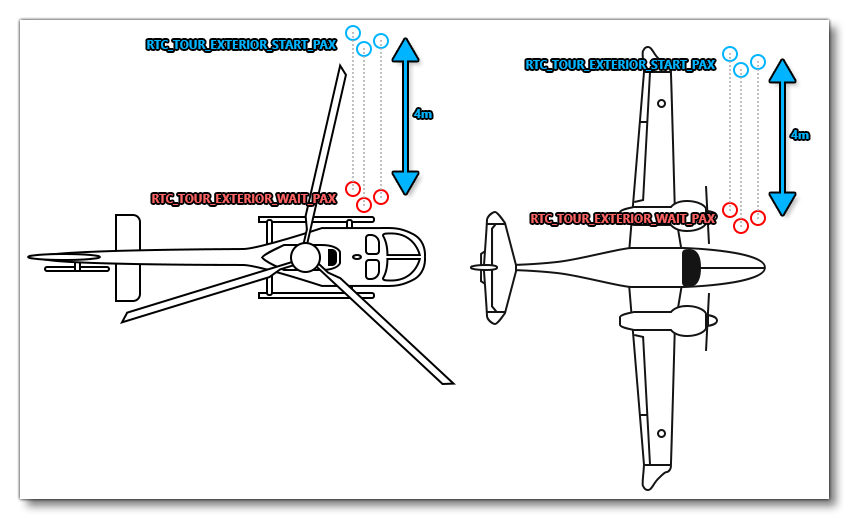
This node is the node where the passenger will spawn into the world at the start of the activity. For Flightseeing and First Flight activities there is a short RTC animation that will play of the passengers moving from this point to theRTC_TOUR_EXTERIOR_WAIT_PAXnode, before entering the aircraft. As such there should be one of these nodes for every passengerSITnode, and the nodes should be placed close together but not on top of each other. These nodes should be on the left side of the aircraft, approximately 4m away from the correspondingRTC_TOUR_EXTERIOR_WAIT_PAXnode, and be connected to that node with an Edge.
-
RTC_TOUR_EXTERIOR_WAIT_PAX
This node defines the end point of the introduction walking animation before the passengers enter the aircraft. There should be one of these nodes for every passengerRTC_TOUR_EXTERIOR_START_PAXnode, and the nodes should be placed close together but not on top of each other, and you should ensure that the edges between the nodes do not cross any other edges. It should be a straight line from the correspondingRTC_TOUR_EXTERIOR_START_PAXnode to this one, and this node should be placed by the side of the aircraft with enough room for the model to stand beside the apparatus without clipping into it.
The image below illustrates an "ideal" placement for the nodes mentioned above:
Additionally, for every RTC_TOUR_EXTERIOR_START_PAX there needs to be a SIT node in the aircraft, positioned at the feet of the seats where passengers can sit. This node is not created in the navigation_graph_passenger.cfg, but should exist in the navigation graph of the passenger seat logic object, as explained here:
For example, here we have two passengers entering the aircraft, and so we spawn two seat logic objects - SEAT_C172_PAX_1 and SEAT_C172_PAX_2 - and each one will have the SIT node:
[NODE.1]
name= PAX_START_1
pos = -5,-3.48502,-1.323018
pbh = 0,0,0
tag = RTC_TOUR_EXTERIOR_START_PAX
projectOnGround = true

[NODE.2]
name= PAX_START_1
pos = -5,-3.524884,0.547803
pbh = 0,0,0
tag = RTC_TOUR_EXTERIOR_START_PAX
projectOnGround = true

[NODE.3]
name= PAX_WAIT_1
pos = -5,-3.48502,-1.323018
pbh = 0,0,0
tag = RTC_TOUR_EXTERIOR_WAIT_PAX
projectOnGround = true

[NODE.4]
name= PAX_WAIT_2
pos = -5,-3.524884,0.547803
pbh = 0,0,0
tag = RTC_TOUR_EXTERIOR_WAIT_PAX
projectOnGround = true

[NODE.5]
name= SEAT_PAX_1
modelNode = ATTACH_SEAT_PAX_1
interactiveObject = SEAT_C172_PAX_1
massSection = Left_pax

[NODE.6]
name= SEAT_PAX_2
modelNode = ATTACH_SEAT_PAX_2
interactiveObject = SEAT_C172_PAX_2
massSection = Right_pax
; More passenger seats here if needed

[MassSection.0]
name = Left_pax
stationLoadName = TT:MENU.PAYLOAD.PASSENGER_LEFT
maxMass = 300
fillProportion = 1

[MassSection.1]
name = Right_pax
stationLoadName = TT:MENU.PAYLOAD.PASSENGER_RIGHT
maxMass = 300
fillProportion = 1

[MainGraph]
nodes= ATTACH_SEAT_PAX_1, ATTACH_SEAT_PAX_2, PAX_START_1, PAX_START_1, PAX_WAIT_2, PAX_WAIT_2
coordinate_system = relative
edges = 0, 1
massSections = Left_pax,Right_pax,Copilot

[EDGE.0]
nodeStart = PAX_START_1
nodeEnd = PAX_WAIT_1

[EDGE.1]
nodeStart = PAX_START_2
nodeEnd = PAX_WAIT_2
FLT Files
When a user starts a flightseeing activity they will be going through the usual Preflight checks, and so they will need to have the Apron.flt setup in the activity preset as follows:
- Section
[SimVars.0]must have the parameterSimOnGroundset totrue. - All defined
[Covers]need to be set totrue(see here for more information). - Section
[Controls.0]must have the parameterParkingBrakeset to 100.00 (if the aircraft has a parking brake). - Aircraft electrics and engines must be turned off.
- The aircraft flight parameters (trim, flaps, etc...) should be set for a cold and idle aircraft.
An additional FLT file is required - the ApronWithoutCovers.flt file - for those occasions when the user may skip the preflight phase and there is an RTC event, or when something causes a Back On Track event after preflight. This file should be set up like a regular apron FLT file, however you should ensure that these changes are made:
Finally you will also need to ensure that you have the climb.flt defined, as this will be used during the climb phase of the skydiving mission, or if there is a Back On Track event that requires it. This file should be configured as follows:
- Section
[SimVars.0]must have the parameterSimOnGroundset tofalse. - All defined
[Covers]need to be set tofalse(see here for more information). - Section
[Controls.0]must have the parameterParkingBrakeset to 0 (if the aircraft has a parking brake). - Aircraft electrics and engines must be turned on.
- The aircraft flight parameters (trim, flaps, etc...) should be set for an aircraft climbing in altitude.
Related Topics