TRAFFIC VEHICLES SAMPLE
This sample is used to illustrate how you can create one or more vehicles to be used for traffic within a region. In this case, we'll be replacing cars within the North American region with small grey vehicles. Care should be taken when creating traffic vehicles this way, as they are spawned on a per-region basis which means that all vehicles within a region will be overridden and replaced by whatever vehicles are in the package.
Loading And Building The Project
In order to load and build the project in Microsoft Flight Simulator 2024, you must have previously enabled Developer Mode (see here for more information). Once enabled, you will need to do two things: build the project and then place the package into The Community Folders folder.
Building The Package
- Use the Open project... command from the File menu.

- Select the file
TrafficVehiclesSampleProject.xmlfrom theTrafficVehiclesSamplesample project.
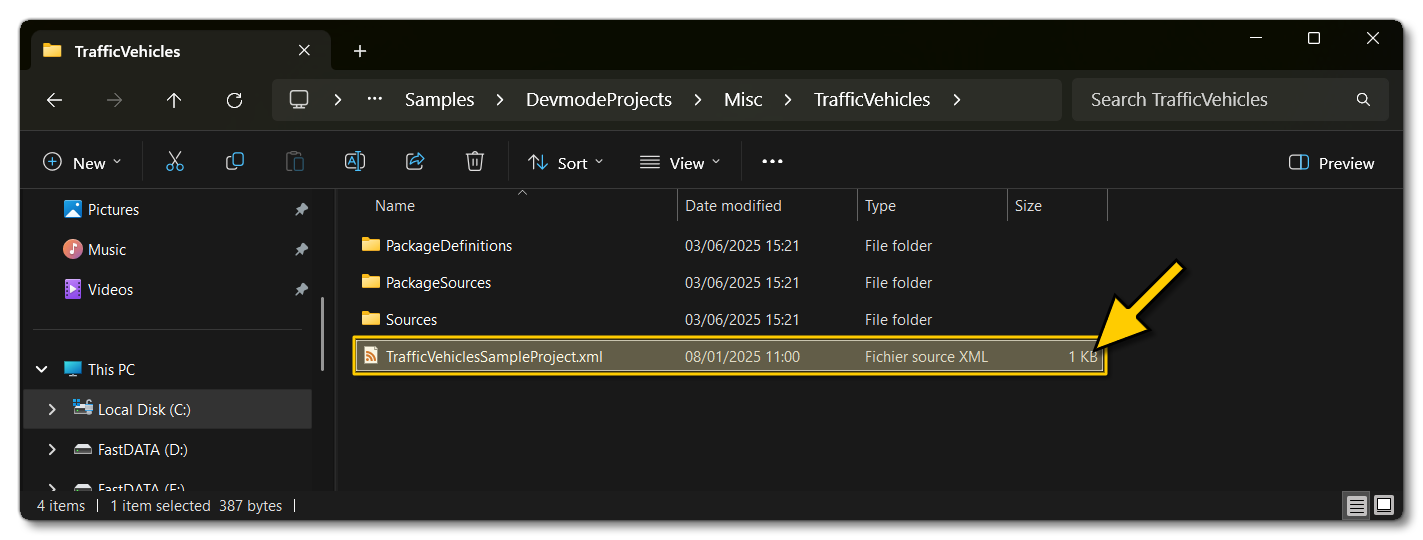
- The Project Editor should open automatically and show you the project
mycompany-modellib-traffic-vehicles(if the Project Editor doesn't open, then you can open it from the Developer Mode Tools menu):

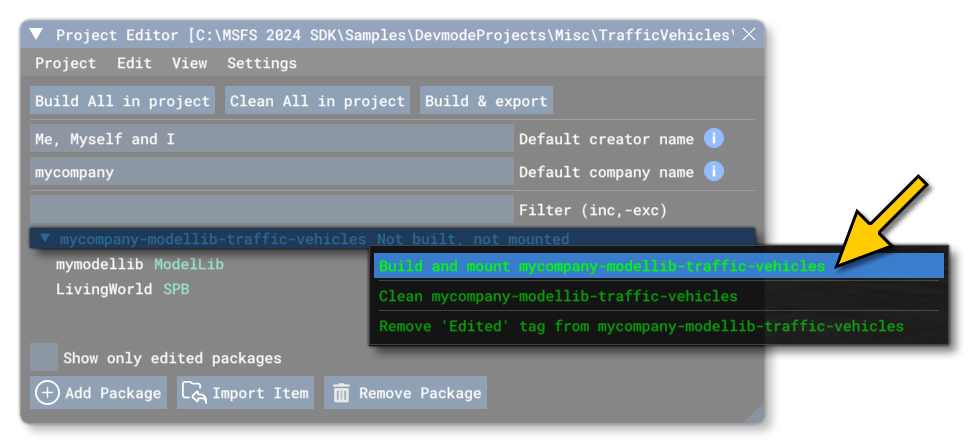
- Selecting the project and then right-clicking will open a menu where you can select the Build and Mount option to build the project and mount the created package in the VFS:
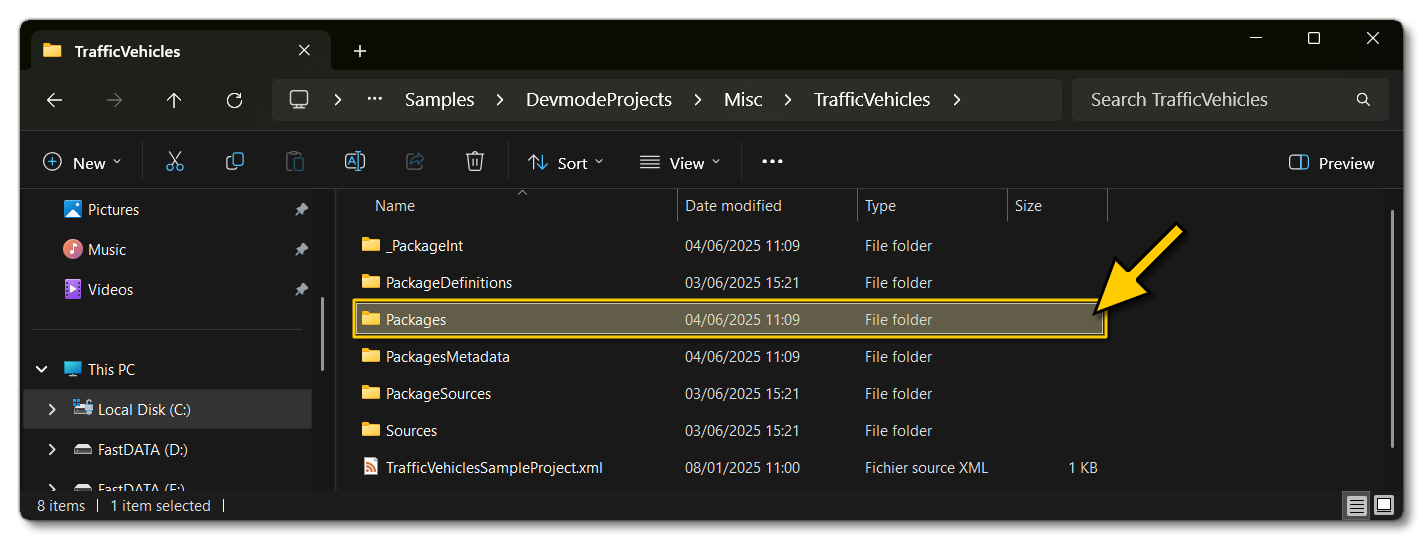
- This will build a package from the files specified in your project. This package will be named
mycompany-modellib-traffic-vehiclesand will be output in the Packages folder created in the same directory asTrafficVehiclesSampleProject.xml:
- At this point you simply have to start a new Free Flight in Mexico (as the vehicles are set to spawn in the "Tropics (American)"
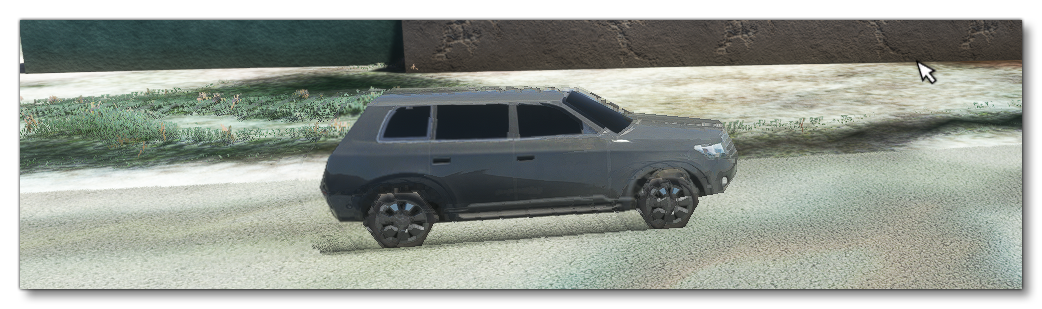
LivingWorldRegion) then pause the simulation and use the Developer Camera to move around the world and inspect the roads to see that all the traffic is using the new model that we've defined. You should see that all the cars have been replaced with the small silver/grey car model from the package.
Related Topics
0/255