AIRPORT LFPG 2024
The AirportLFPG2024 sample illustrates some of the concepts associated with the creation of an airport for Microsoft Flight Simulator 2024, in particular the use of SimPropContainer Objects. The airport this package replaces is Paris Charles De Gaulle (LFPG) in Paris, France. This is a minimal airport project designed solely to demonstrate the use of a simprop container object to create a complex piece of scenery from different "building blocks".
Loading And Building The Project
In order to load and build the project in Microsoft Flight Simulator 2024, you must have previously enabled Developer Mode (see here for more information). Once enabled, simply follow these steps:
- Use the Open project... command from the File menu.

- Select the file
lfpg-2024.xmlfrom theAirportLFPG2024sample project.
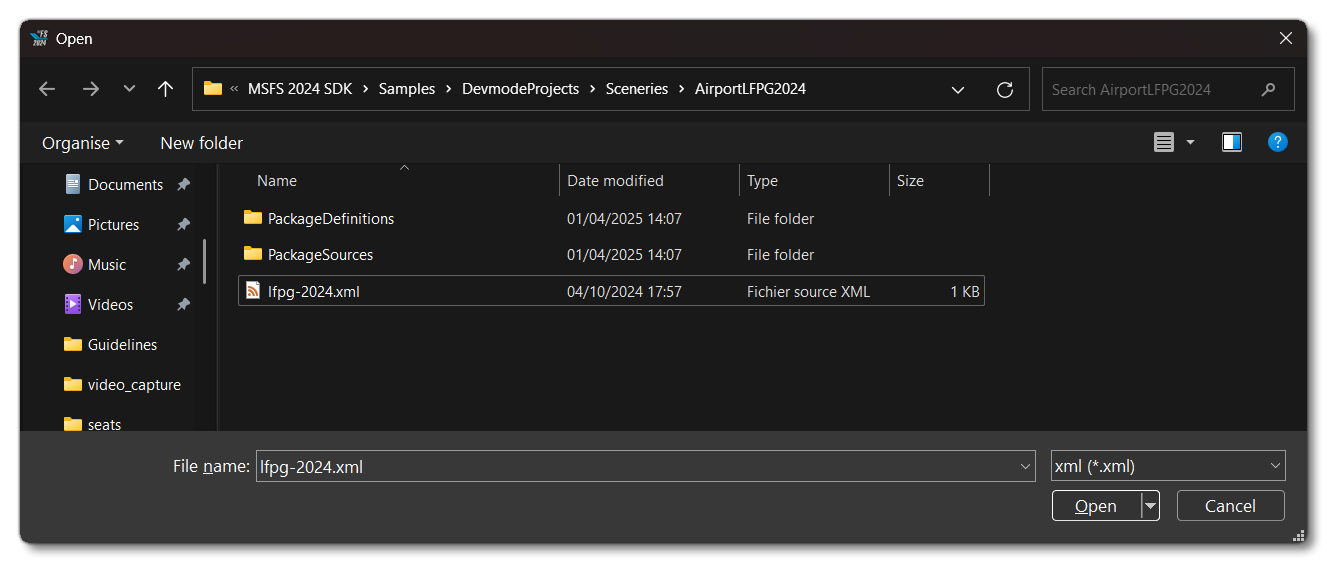
- The Project Editor should open automatically and show you the project
asobo-airport-lfpg-paris-charles-de-gaulle-2024(if the Project Editor doesn't open, then you can open it from the Developer Mode Tools menu)
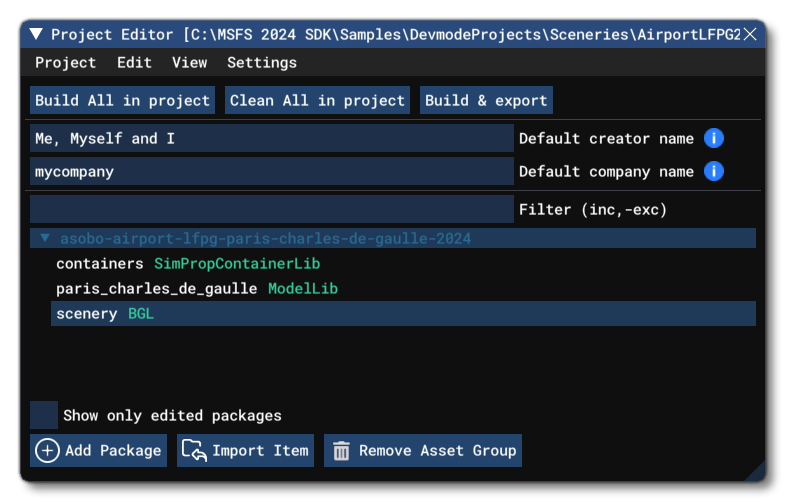
- Once the project is loaded, you can right-click on it, and select the Build and Mount option.

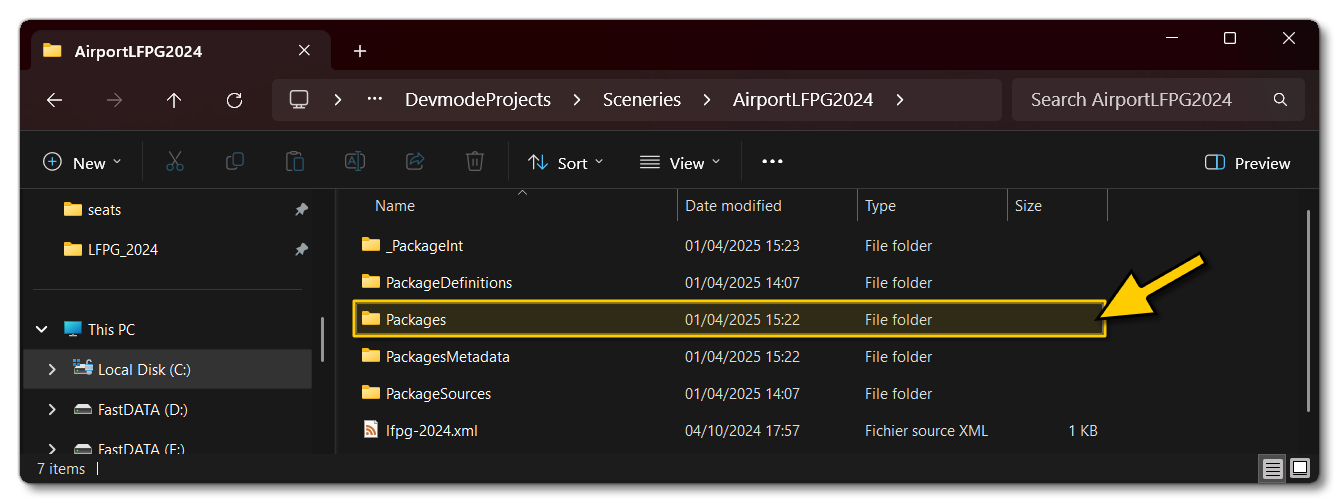
- This will build a package from the files specified in your project. This package will be named
asobo-airport-lfpg-paris-charles-de-gaulle-2024and will be output in the Packages folder created in the same directory aslfpg-2024.xml:
- To get to the airport location, you need to start a free-flight, either at LFPG or, anywhere else in the world. You can then select the Scenery BGL in the Project Editor, and finally in the Inspector window, click on the
Load In Editorbutton:
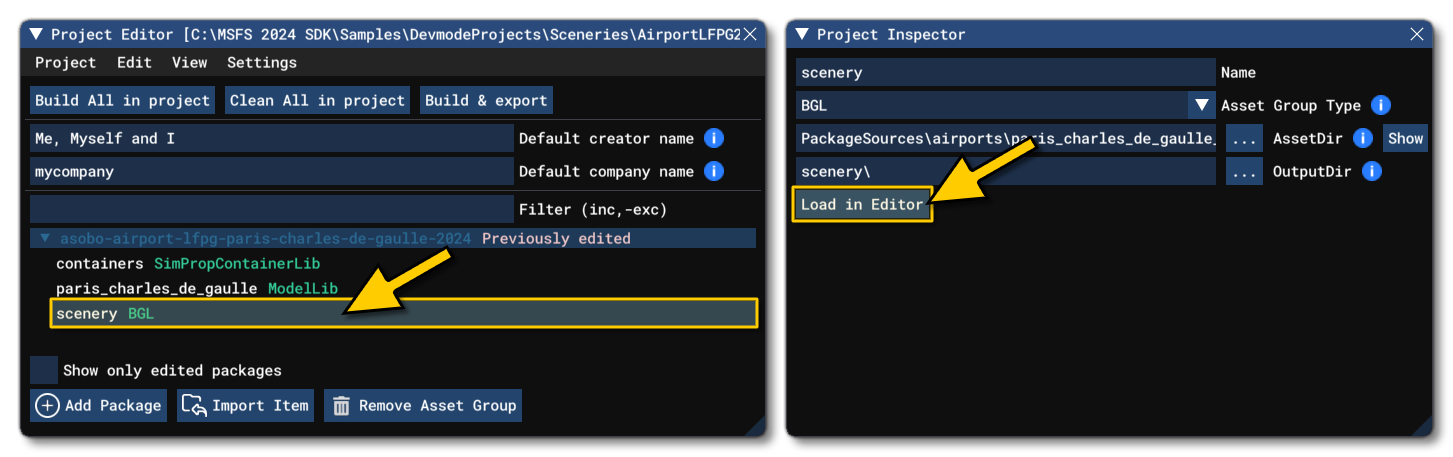
- Clicking this will load the airport in the Scenery Editor and take you to it:
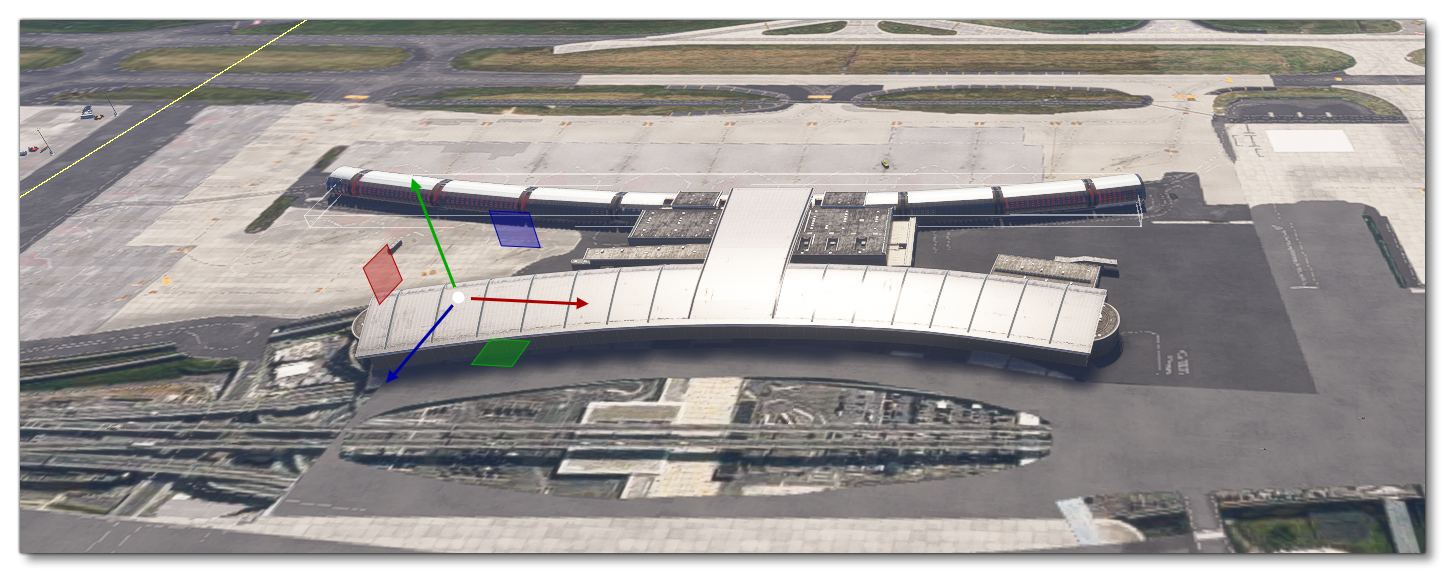
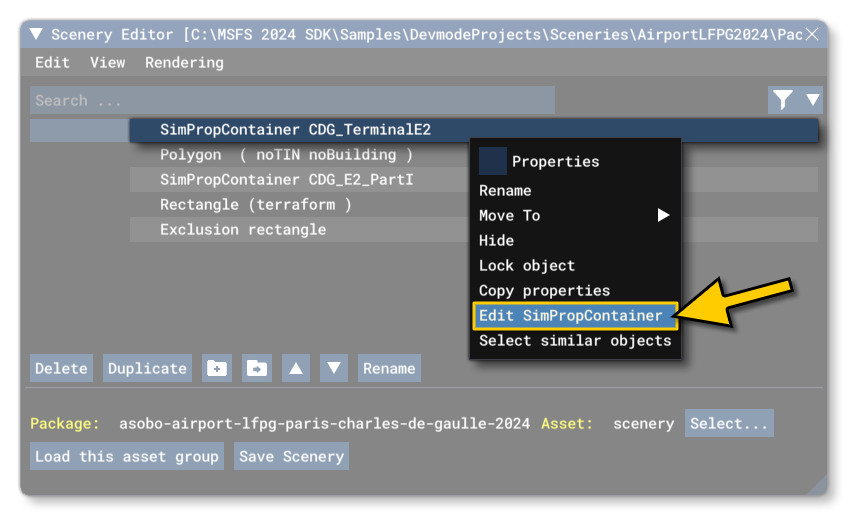
Having built the project and loaded the scene, you can then start to explore the contents of the main airport building, constructed within the CDG_TerminalE2 simprop container. For that, select the SimProp container in the Scenery Editor, then right-click and select the Edit SimPropContainer option:
The Scenery Editor will change to allow you to edit the contents of the SimProp Container, and you can explore how the building was constructed, either using the camera to pan around and clicking on different items to select them, or double-clicking objects in the Scenery Editor list to pan directly to them.
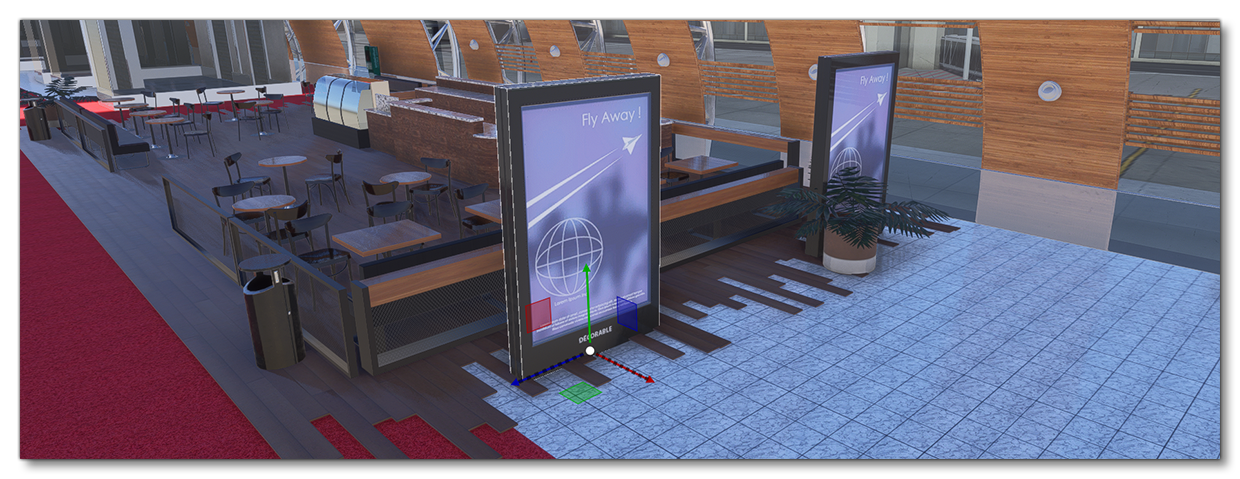
Note that all objects in a SimProp Container are displayed at LOD0, meaning that there may be performance issues when a lot of the SPC is in the camera view. This will not be an issue when the SPC is in a scene as each object will scale through it's LODs independently as the camera moves, but when creating the SPC this is not the case. Reusing assets and having them scale through the LODs without having a single monolothic model that can "pop" into the scene are the major benefits of the SimProp Container system.
Related Topics