SIMPLE BIOMES
The SimpleBiomes sample illustrates the process of adding biome definitions and overriding vegetation placements in Microsoft Flight Simulator 2024. Making this example required using the Scenery Editor to generate Polygon Objects which are used to define the placement of the vegetation and biome in the game world. The project also includes some custom XML - which defines the species and biome types (see Living World Configuration for more information).
Loading And Building The Project
In order to load and build the project in Microsoft Flight Simulator 2024, you must have previously enabled Developer Mode (see here for more information). Once enabled, simply follow these steps:
- Use the Open project... command from the File menu.

- Select the file
SimpleBiomes.xmlfrom theSimpleBiomessample project.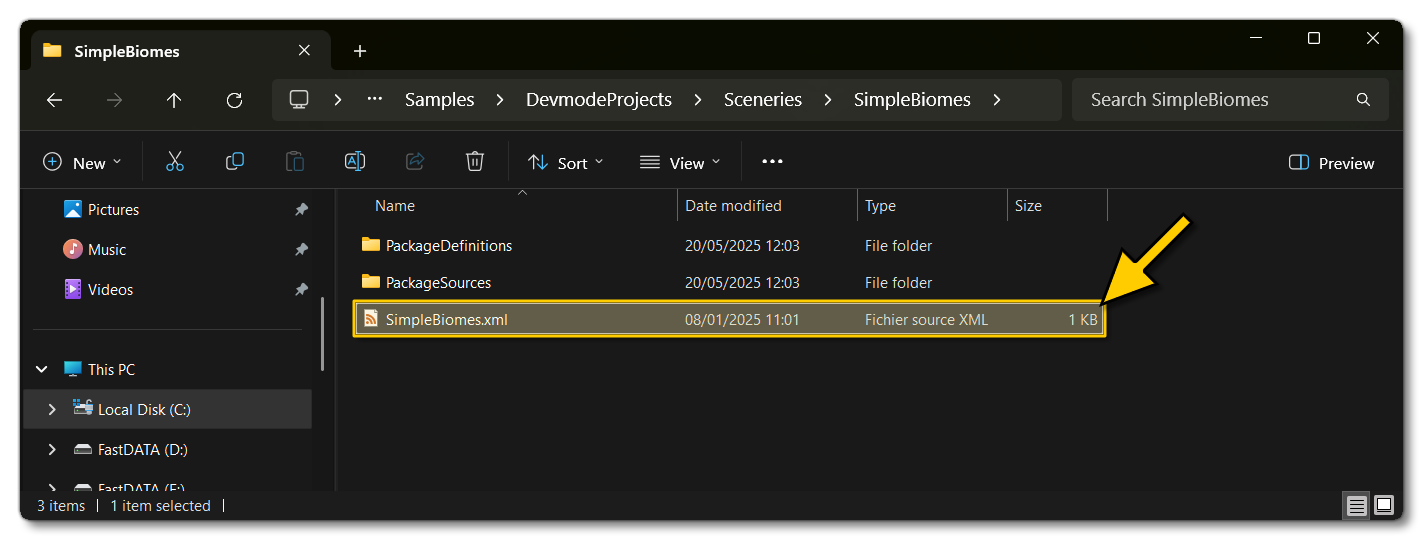
- The Project Editor should open automatically and show you the project
mycompany-vegetation(if the Project Editor doesn't open, then you can open it from the Developer Mode Tools menu)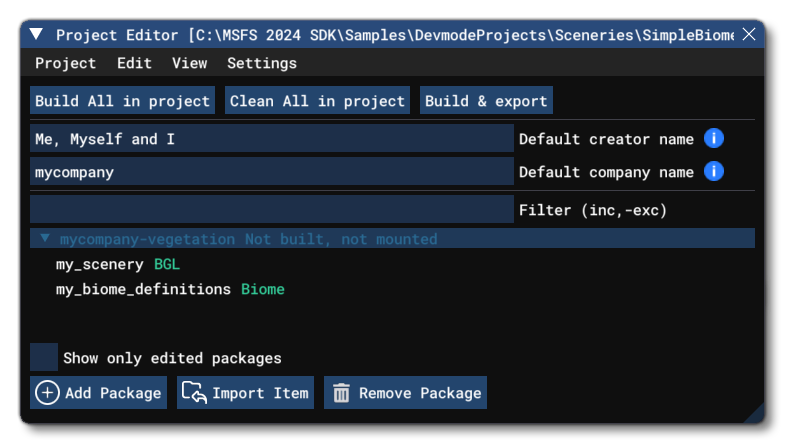
- Selecting the project and then right-clicking will open a menu where you can select the Build and Mount option to build the project and mount the created package in the VFS:
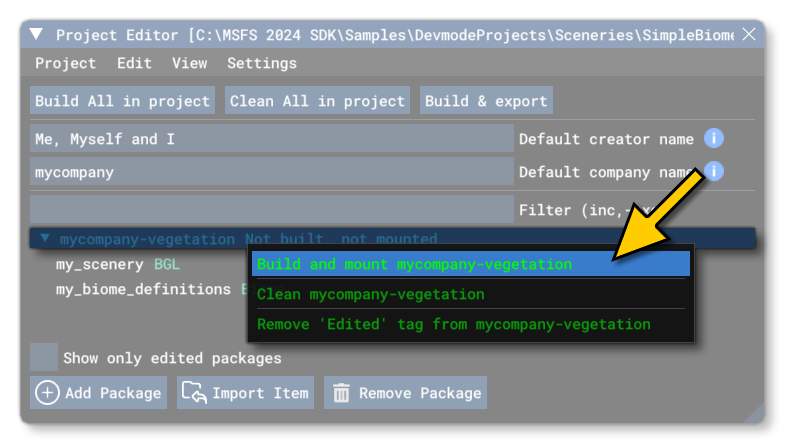
- This will build a package from the files specified in your project. This package will be named
mycompany-vegetationand will be output in the Packages folder created in the same directory asSimpleBiomes.xml: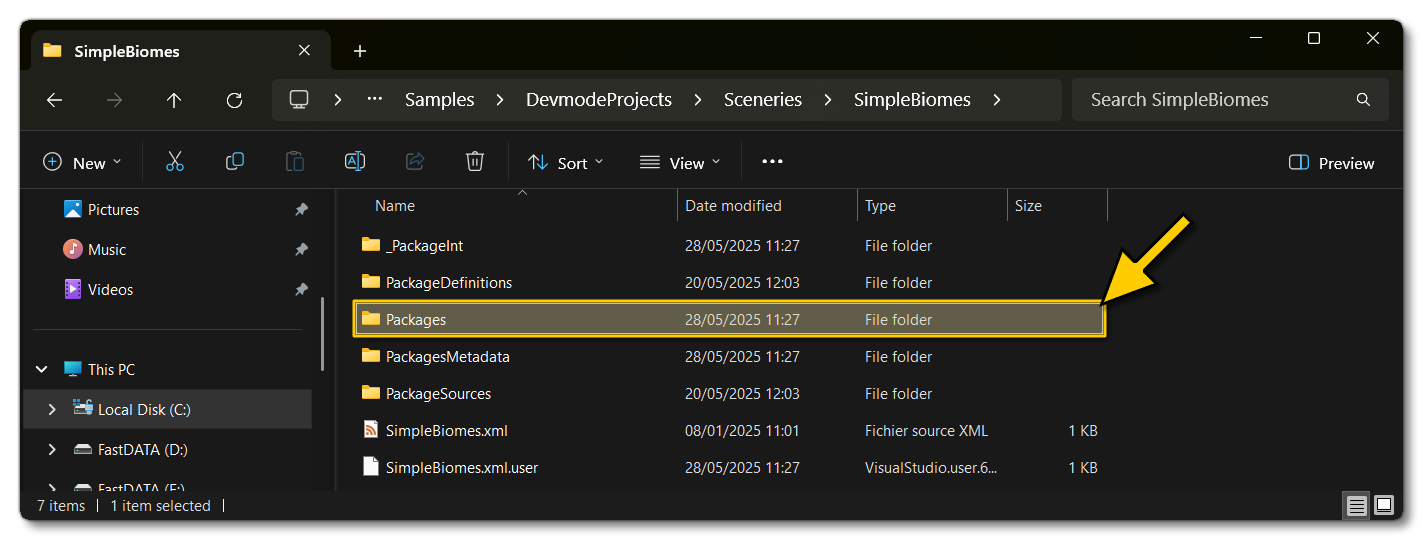
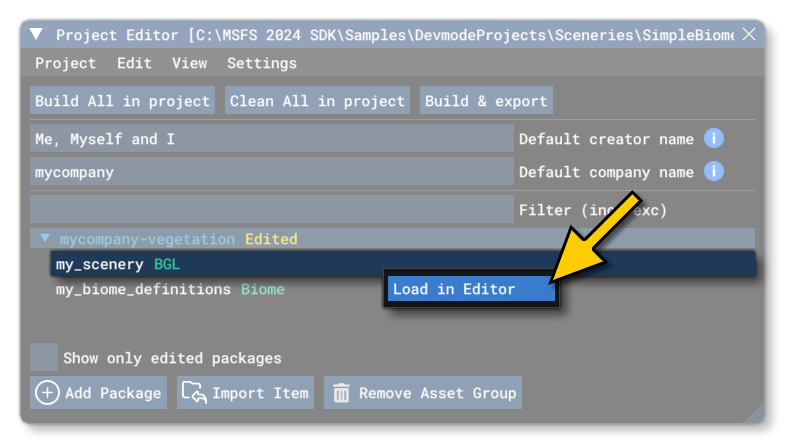
- To get to the location where we've modified the biomes, simply start a free-flight at any airport, and then right-click on the BGL asset group and select Load In Editor:
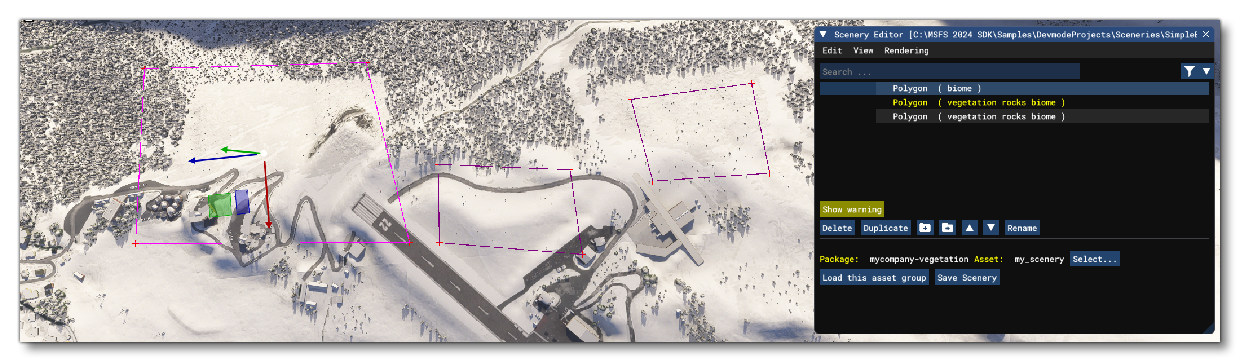
- Clicking this will load the assets into the Scenery Editor, and then you can double-click on any of the polygon objects listed to take you to them in the simulation:
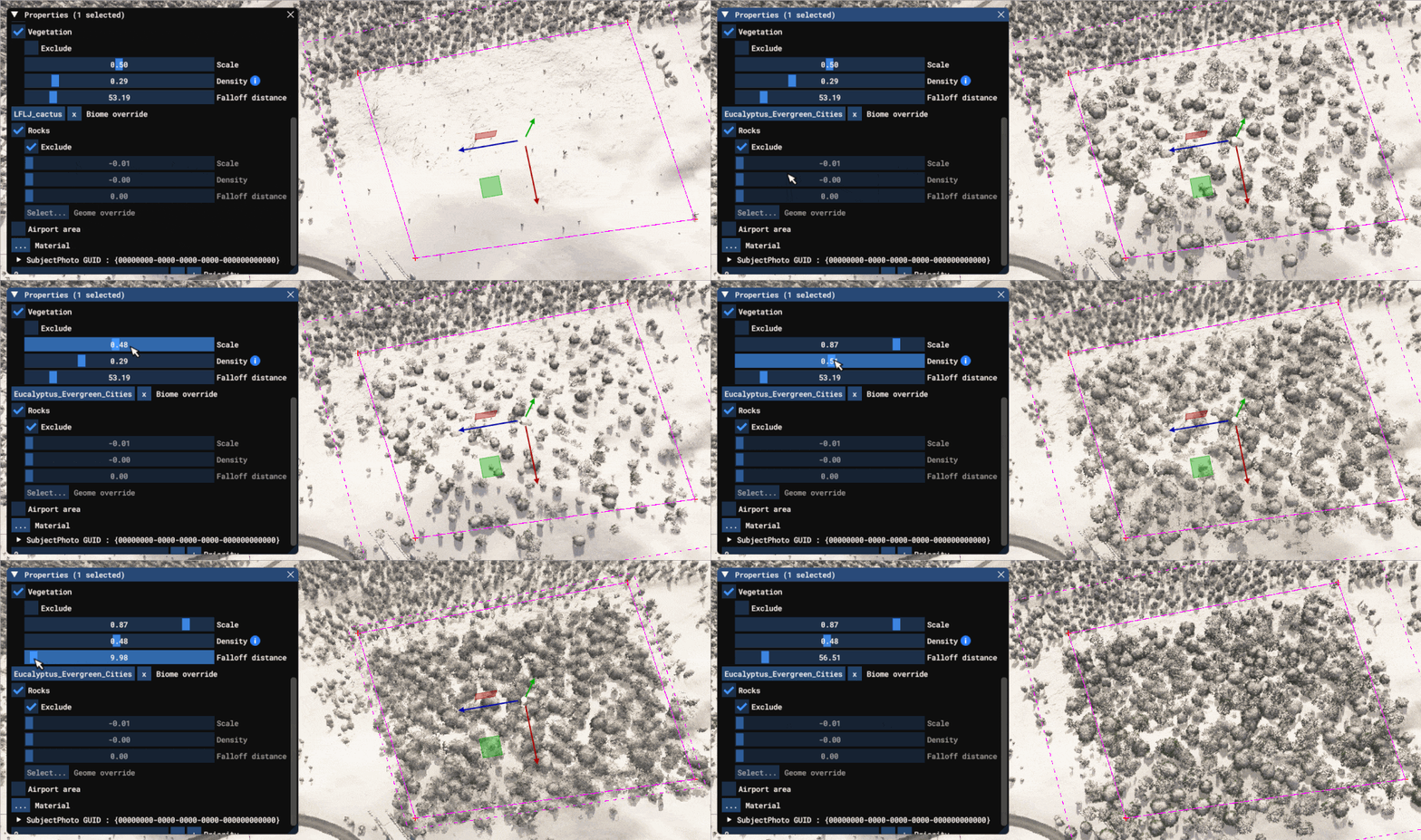
- If you left click on any of the polygons to select them, you can then change the biome options in the Properties window and see the different biomes change in the simulation, and also see listed the new, custom, biomes that the asset introduces (in this case, those listed with the
LFLJ_prefix):
Related Topics
0/255