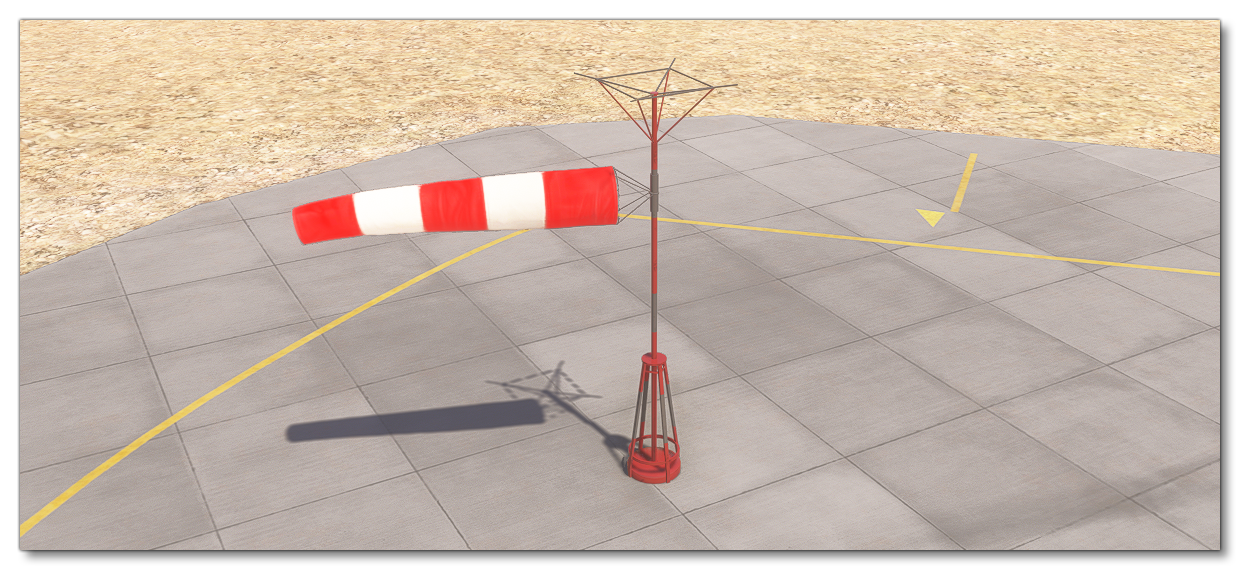
WINDSOCK SAMPLE
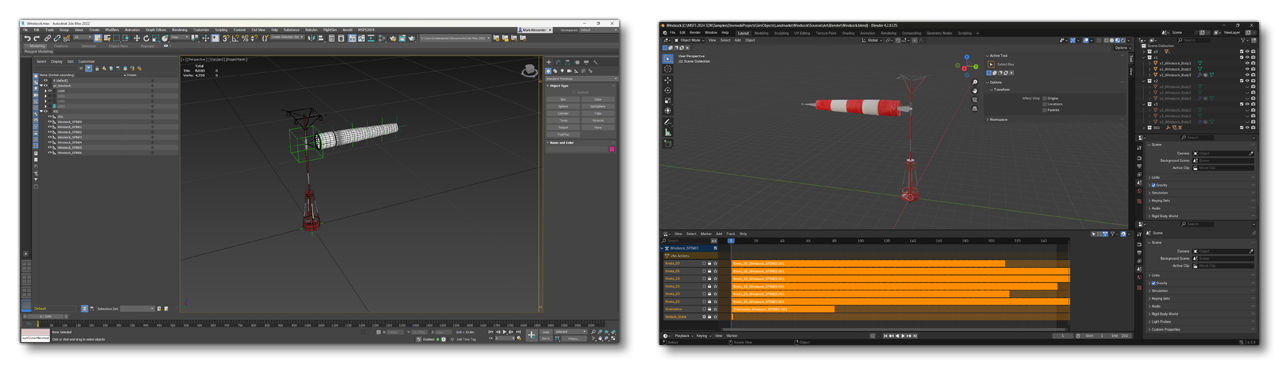
This sample project shows you how to create and add a simple SimObject into a scene, and how to use the Model Definitions XML to have that model interact with the simulation. In this case it's to make the SimObject change direction and animation based on the wind direction and strength. The main "core" of this sample is the included 3D model (which can be found prepared for both Blender and 3DS Max in the "Source" folder):
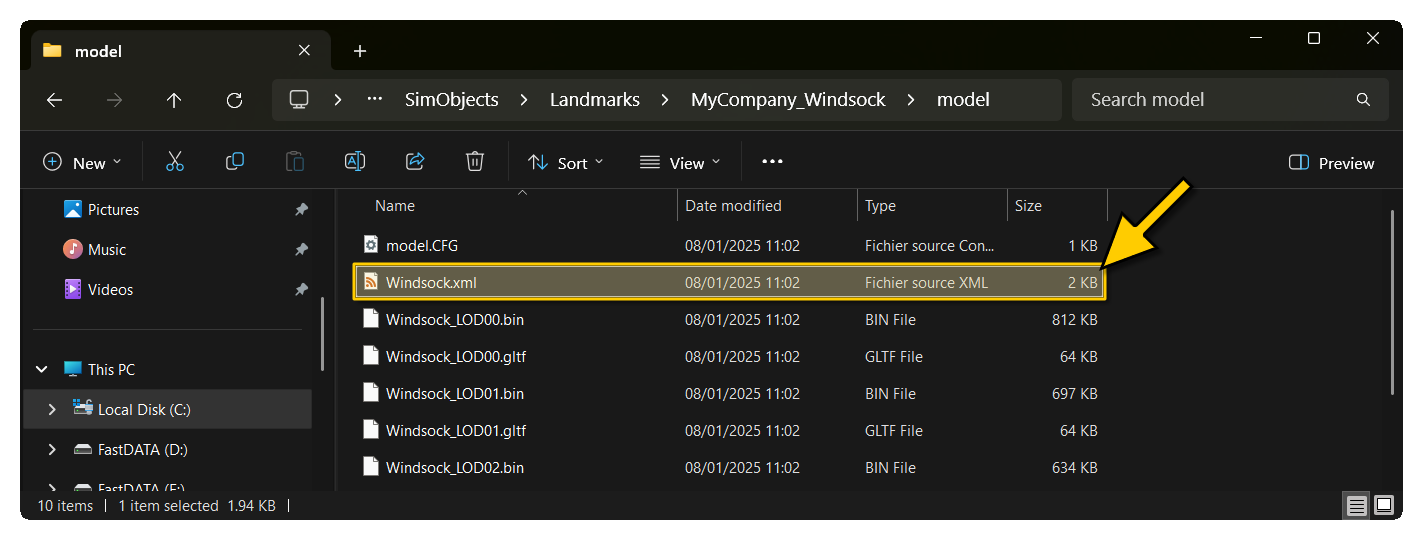
The other important file is the Windsock.xml file - found in the model folder of PackageSources - which is where the basic Model Behaviors are defined to have the object interact with the simulation:
Loading And Building The Project
In order to load and build the project in Microsoft Flight Simulator 2024, you must have previously enabled Developer Mode (see here for more information). Once enabled, simply follow these steps:
- Use the Open project... command from the File menu.

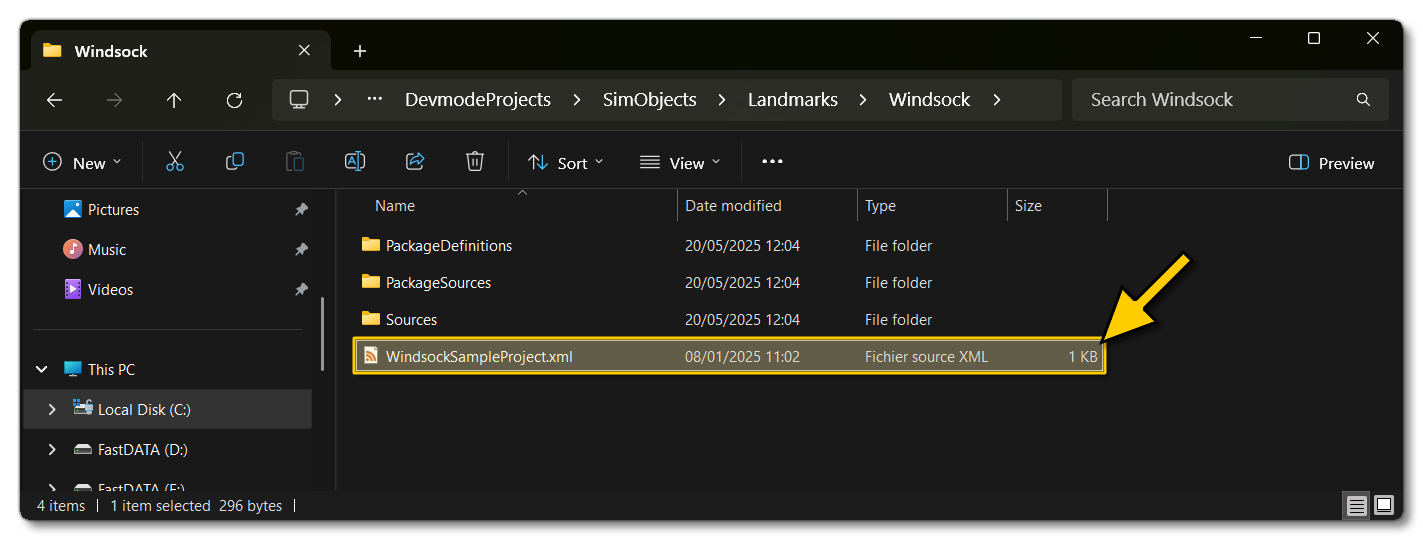
- Select the file
WindsockSampleProject.xmlfrom theWindsockSampleproject folder:
- The Project Editor should open automatically and show you the project
mycompany-simobjects-windsock(if the Project Editor doesn't open, then you can open it from the Developer Mode Tools menu):
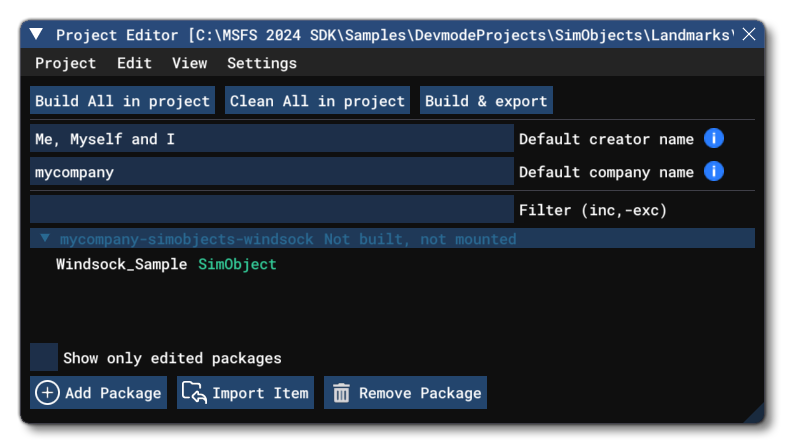
- Selecting the project and then right-clicking will open a menu where you can select the Build and Mount option to build the project and mount the created package in the VFS:
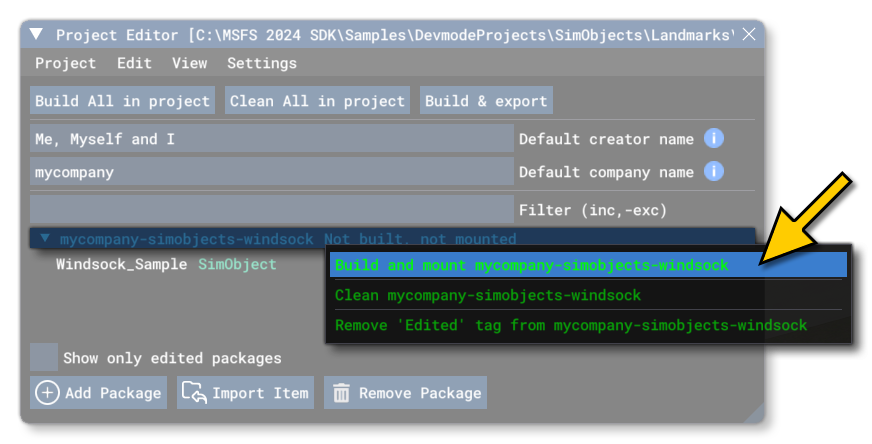
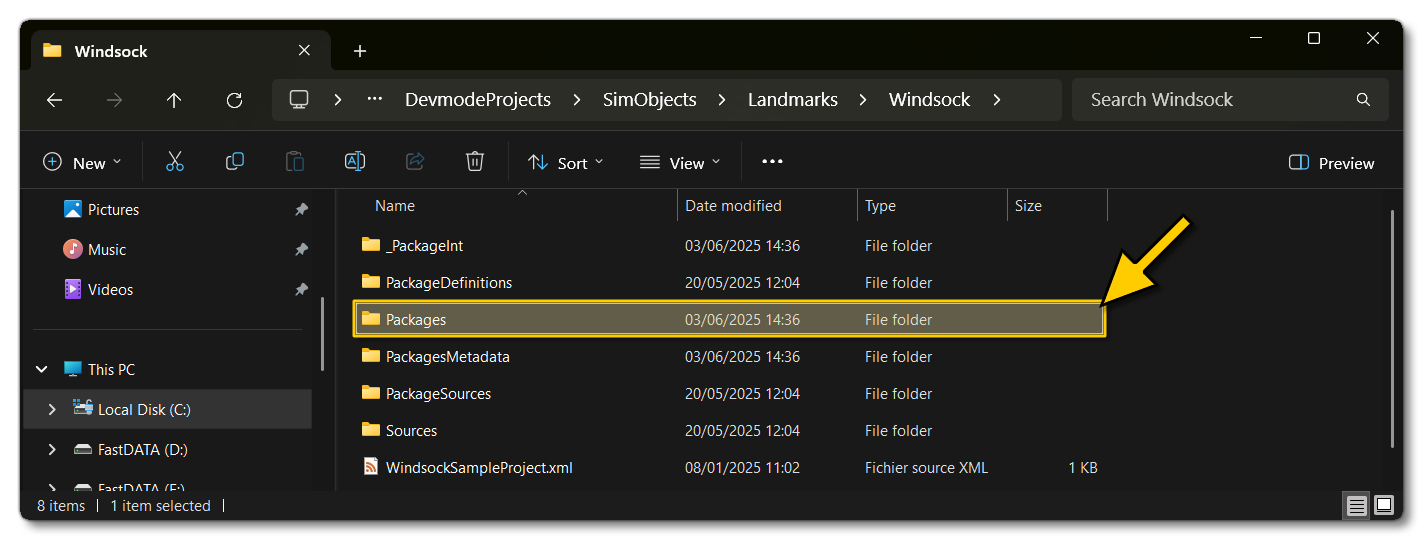
- This will build a package from the files specified in your project. This package will be named
mycompany-simobjects-windsockand will be output in the Packages folder created in the same directory asWindsockSampleProject.xml:
- Now that the package has been built you need to open The Scenery Editor, so we can spawn the windsock object from this sample in the simulation to see how they look. So, in the Objects window you should select SimObject as the Object Type, and then select the
mycompany-simobjects-windsockpackage from the list to filter to the new object:
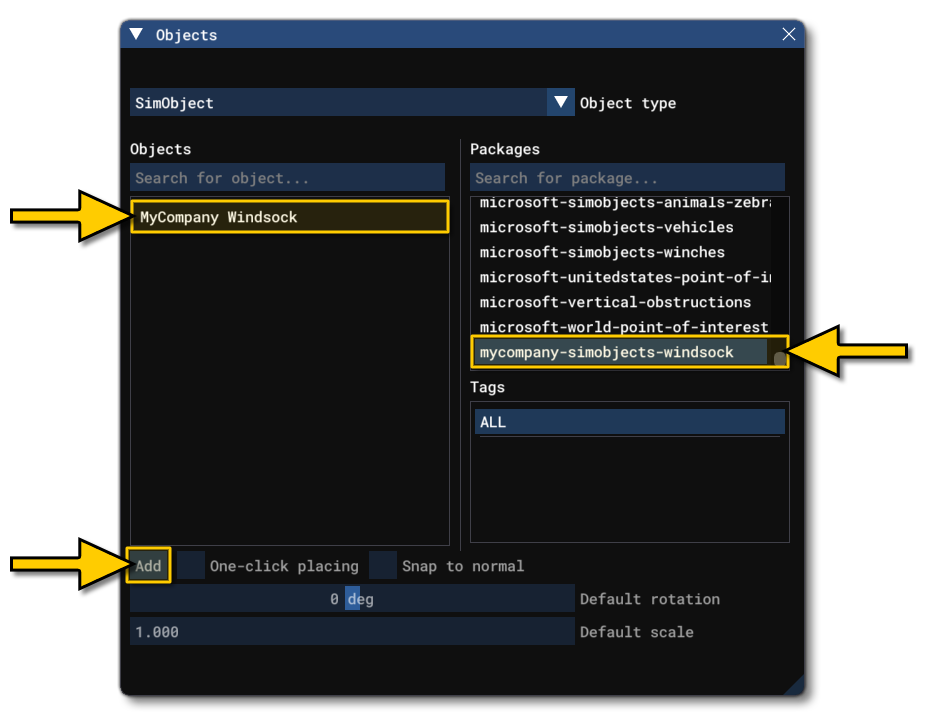
- You can then go ahead and click on the
Addbutton to add a copy of the Windsock object into the scene: