AIRPORT KALO
The AirportKALO sample illustrates an expanded and complete - but still relatively simple - airport designed for Microsoft Flight Simulator 2024. The airport this package replaces is Waterloo Regional Airport (KALO) in Iowa, N.America and, unlike the SimpleAirport sample - which is meant as a base to build on and contains very little in the way of objects - this sample contains multiple different scenery objects. It is designed to show a medium complexity airport that makes use of almost all the available scenery tools, as well as a few other important features that are important for creating good scenery like aerials, custom models and custom materials.
Loading And Building The Project
In order to load and build the project in Microsoft Flight Simulator 2024, you must have previously enabled Developer Mode (see here for more information). Once enabled, simply follow these steps:
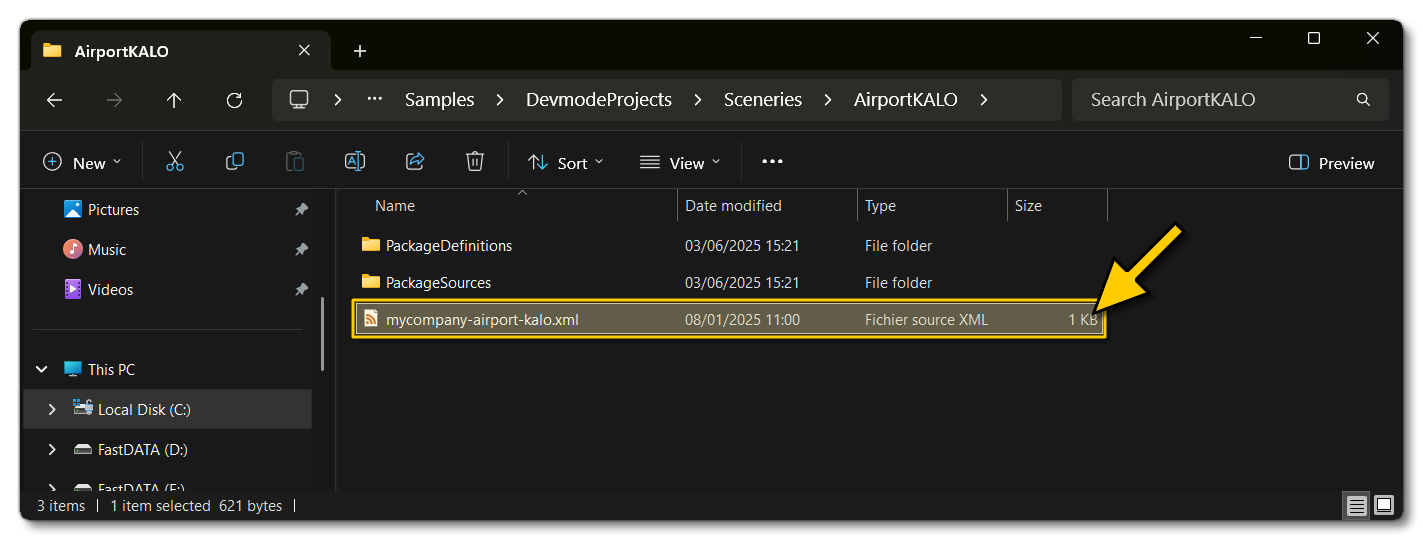
- Use the Open project... command from the File menu.

- Select the file
mycompany-airport-kalo.xmlfrom theAirportKALOsample project.
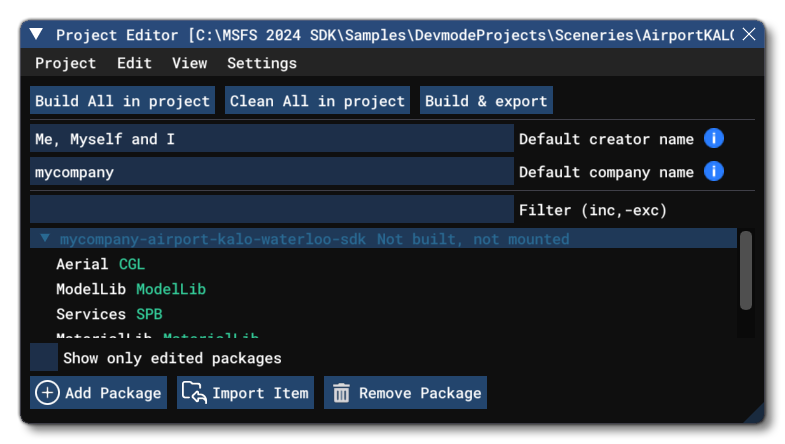
- The Project Editor should open automatically and show you the project
mycompany-airport-kalo-waterloo-sdk(if the Project Editor doesn't open, then you can open it from the Developer Mode Tools menu).
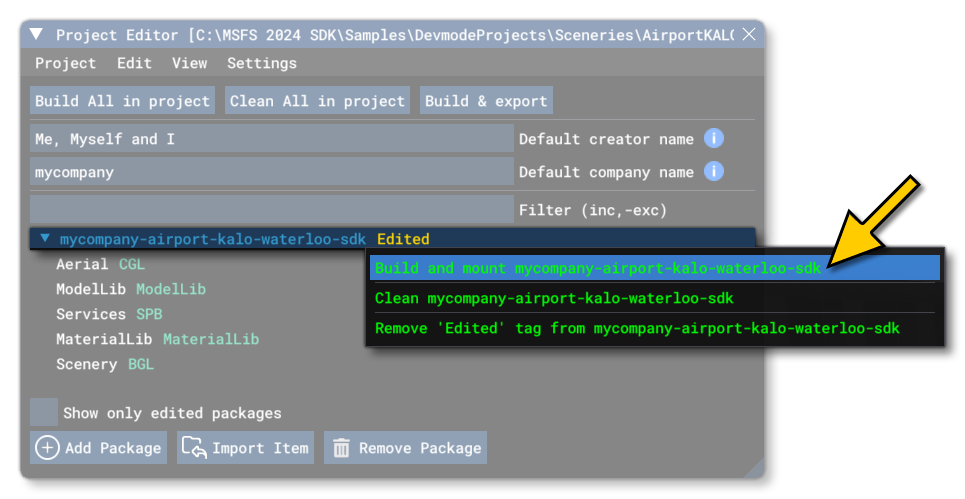
- Selecting the project and then right-clicking will open a menu where you can select the Build and Mount option to build the project and mount the created package in the VFS:
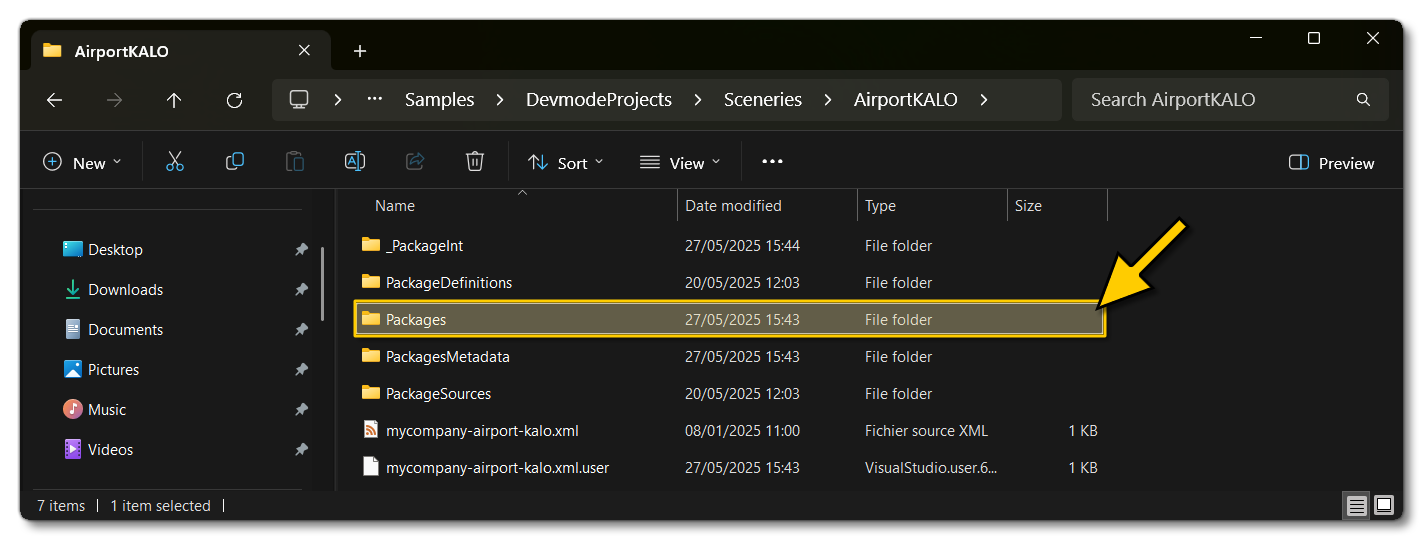
- This will build a package from the files specified in your project. This package will be named
mycompany-airport-kalo-waterloo-sdkand will be output in the Packages folder created in the same directory asmycompany-airport-kalo.xml:
- To get to the airport location, you need to select the Scenery BGL in the Project Editor, and then right-click and click on the
Load In Editorbutton: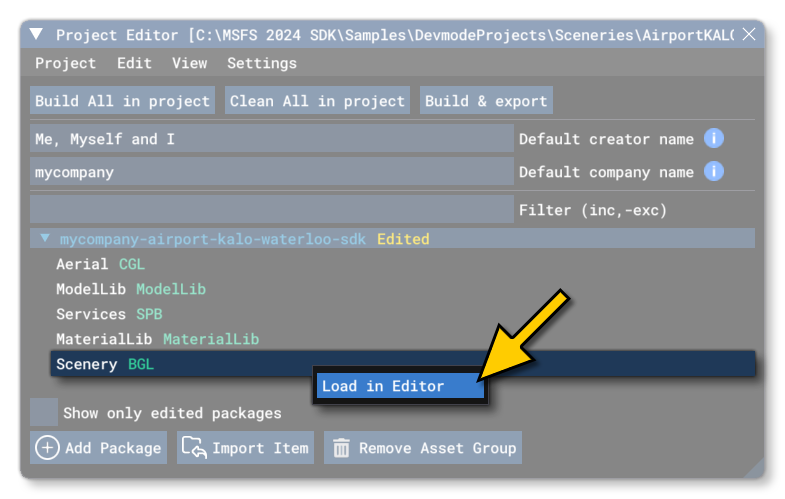
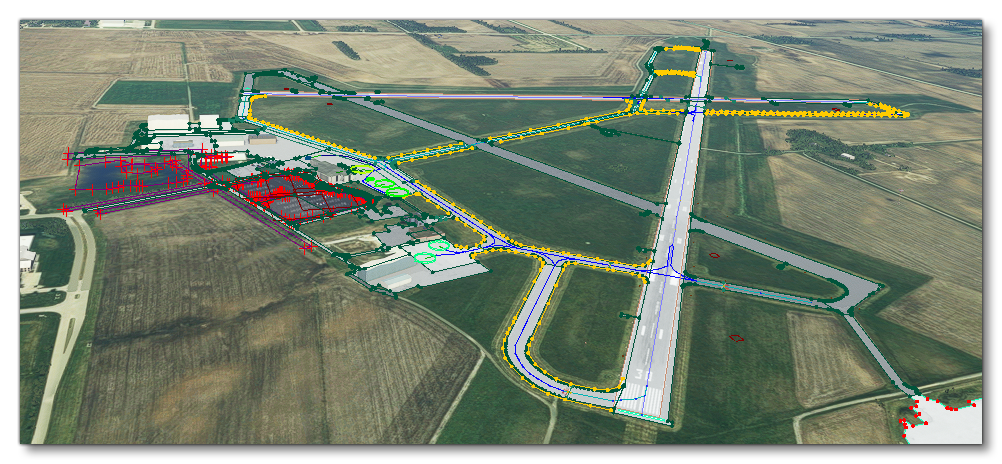
- Clicking this will load the airport in the Scenery Editor and take you to it:
Related Topics