THE VIDEO CAPTURE TOOL
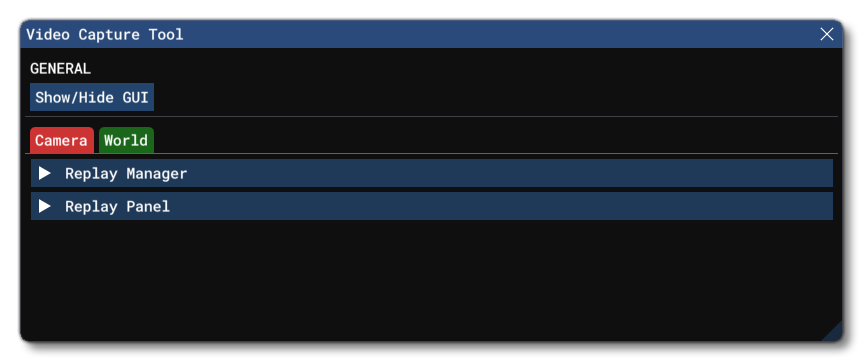
This tool is designed to render in-game high quality videos, while also providing help with framing or "tweaks" (effects) to create the perfect shots. This tool forces the engine to run at 60FPS to give silky smooth results and was used to shoot every trailer video for Microsoft Flight Simulator 2024. However, the final results will still depend on how powerful your PC is and the graphic settings for the simulation. We also recommend that you have access to some kind of video editing software to polish and edit the videos that this tool can take.
IMPORTANT! This tool does not record audio! For that, you will need to use an external software solution to record the audio, and then splice it together with the video in your editing suite of choice.
It should be noted that the capture tool will also capture any DevMode windows you have open over the Simulation, as well as the DevMode toolbar at the top of the screen. As such we strongly recommend that you close/move all windows, and enable the Auto-Hide Menu Bar option for the DevMode toolbar.
The Capture Process
The general flow for capturing videos of your aircraft is as follows:
- Select the Video Capture Tool from the Tools menu or the Camera menu. This will open the tool itself and you should expand the Camera - Replay Panel section:
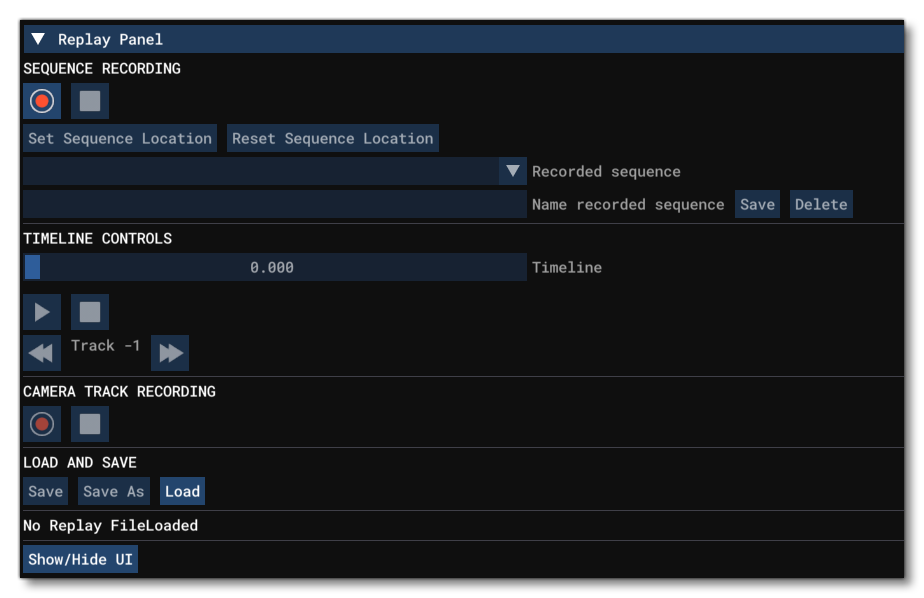
- This panel is where you will record the different flight sequences which will be used to make the video capture. The whole point of a sequence is essentially to record the inputs, movement, and flight path for the aircraft, so that they can then be matched with dynamic cameras to create different "shots" which can be stitched into a video. Before doing anything in this window, ensure that your aircraft is in a position where you wish to start recording, and then once you are ready, you can click on the record button
 to start recording the flight sequence. While recording, the simulator will record the motion of the aircraft, as well as the initial motion of the camera. When finished you can hit the stop button
  .
.
- Having recorded the sequence, you should select it in the Recorded Sequence list, name it, and then click on the
Savebutton:

- When you've finished recording you can then preview the results by using the timeline controls, which let you scrub through the flight sequence using the timeline slider, or you can play/pause the flight by clicking on the play button
 :
:
 At this point you can either move on and start creating camera tracks, or you can record more sequences for use later.
- Having saved one or more sequences, you can start recording the different camera tracks to use. By default, during the initial sequence recording, track 1 will have been created which is simply a recording of the camera movements made while recording the sequence. However, you are not limited to this camera track and can add more using the Camera Track Recording options:

- To add a camera, set the timeline play-head for the sequence to the beginning (or the just before the key moment of the sequence where you want to use the camera), and click on the button. This will create the camera, but nothing will be recorded until you press play to start the sequence. At that point, all camera movements will be recorded as part of the new camera track while the sequence plays. Note that you can pause the sequence and re-position the camera then start the sequence again to create "cuts" in the camera flow. By default, all recording of the camera will stop automatically when the sequence playing ends, however you can stop the recording of the camera at any time using the stop button.
- Once you have the camera track and the sequence created and are happy with them, you can then go to the Load and Save section and click the
Save Asbutton to save these things to use later (note that the sequence and camera tracks you save are independent of the aircraft, so you can re-use them with other aircraft). You can then continue to work on the capture and clickSaveevery time you are happy with the changes, or you can move to a different sequence project by clickingLoadand selecting the project from the file explorer.
- It is worth mentioning that while creating sequences and cameras, you can change the "look" of the shots using the Replay Tweaks and the options available from the World tab. The world settings are global and will be applied to all captures, while the replay tweaks will only be applied to the current camera.
- When ready to perform the actual frame-by-frame capture, you should go to the Camera - Replay Manager.
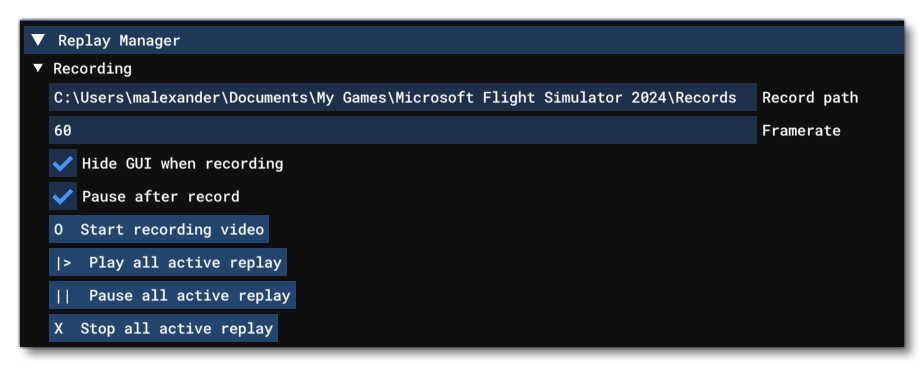 In this panel you can set up the initial recording parameters, specifically the Record Path folder where the capture frames will be stored, and the Framerate, which is 60 by default. Additionally you can choose to hide the simulation GUI, and to pause the simulation after the recording is finished.
IMPORTANT! Recordings are done as frame-by-frame images, and as such require a lot of disk space. Make sure you have room on your recording drive before starting.
- To record the frame-by-frame images to use as video, you can now click the
Start Recording Videobutton, then press the play button to start the sequence you wish to record. Once the sequence has finished (or you press the Stop Recording Gameplay button), you will have a folder of images which can be imported into any video editing software to create the final video. This folder will be called Video 0 and is located at the path given for the Record Path.
Camera - The Replay Manager
 The Video Capture Tool window is split into two main sections, the first of which is the replay manager. This section has 3 expandable sub-sections, outlined below.
Recording
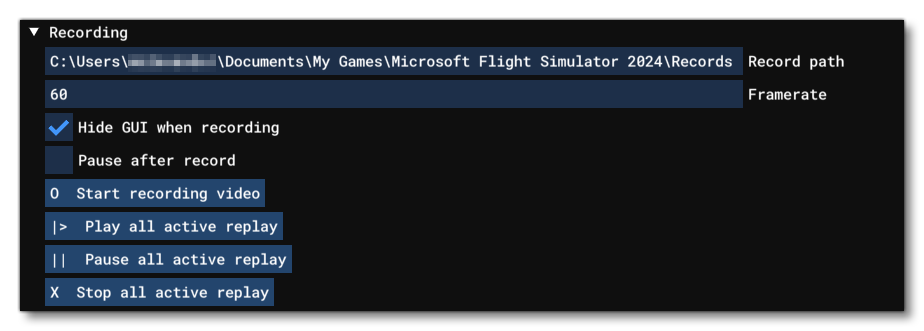 This sub-section has the following options:
-
Record Path
This defines the path where you want the frame-by-frame captures to go.
-
Framerate
This sets the framerate for the capture. In general you want this to match the framrate of the simulation, as set in the system settings. However you can supply higher values if you'd like to create a slow motion or other effect.
IMPORTANT! A lot of simulation parameters were not designed to be rendered at speeds greater than 60FPS. Higher values may affect some animations or visual effects.
-
Hide Gui When Recording
This can be used to toggle on or off the simulation UI when performing a capture.
-
Pause After Record
This option will force the simulation to pause after the a capture has been recorded while replaying.
-
Start Recording Video
This is used start the replay and the frame-by-frame capture.
-
Play All Active Replays
This button will start all the loaded replays at the same time. This is only used when you have loaded several replays, mainly to create "fake" multiplayer sessions to capture, and wish them to start playing all at once.
-
Pause All Active Replays
This button can be used to pause all currently playing replays.
-
Stop All Active Replays
This button can be used to stop all currently playing replays.
Framing Tools
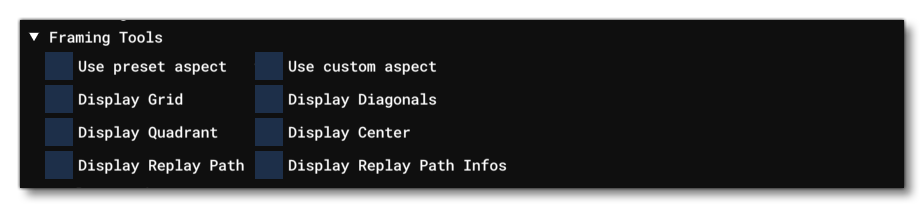 This sub-section lets you define aspect ratio and gives access to some overlays that are useful for framing when creating captures. It has the following options:
-
Use Preset Aspect
When this is checked, a new drop down menu will be shown where you can select from one of the pre-defined aspect ratios available to be used for the capture. If the Use Custom Aspect option is checked, this will be unavailable. This will not be rendered in the final capture, and is only provided to help with framing for future editing.
-
Use Custom Aspect
When this is checked, a new slider will be shown which you can use to modify the aspect ratio to be used for the capture. If the Use Preset Aspect option is checked, this will be unavailable. This will not be rendered in the final capture, and is only provided to help with framing for future editing.
-
Display Grid
Checking this option will display a 3x3 grid over the screen - adapted to the selected aspect ratio - to help with framing. This will not be rendered in the final capture.
-
Display Diagonals
Checking this option will display corner-to-corner diagonal lines over the screen - adapted to the selected aspect ratio - to help with framing. This will not be rendered in the final capture.
-
Display Quadrant
Checking this option will display lines - adapted to the selected aspect ratio - that split the screen into 4 quadrants to help with framing. This will not be rendered in the final capture.
-
Display Center
Checking this option will display a cross to mark the center of the screen to help with framing. This will not be rendered in the final capture.
-
Display Replay Path
Checking this option will display a line in the simulation that follows the path of the aircraft as defined by the current capture. This can be used to help position cameras for recording a specifc shot.
IMPORTANT! This path will be rendered in the final capture and as such you should disable it before going through the frame-by-frame capture process.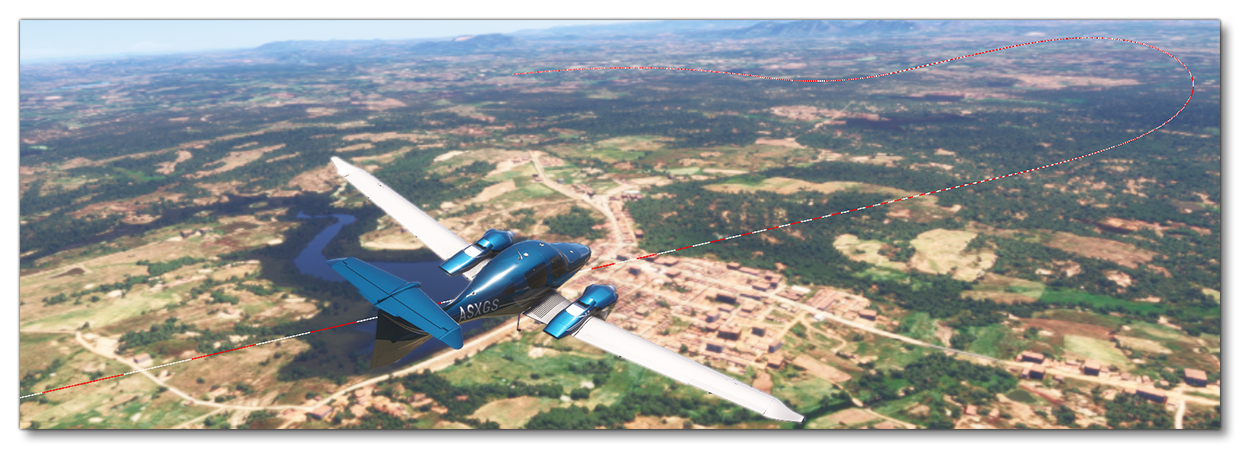
-
Display Replay Path Infos
Checking this option will display additional information about the current capture path. This will not be rendered in the final capture.
Replay Tweaks
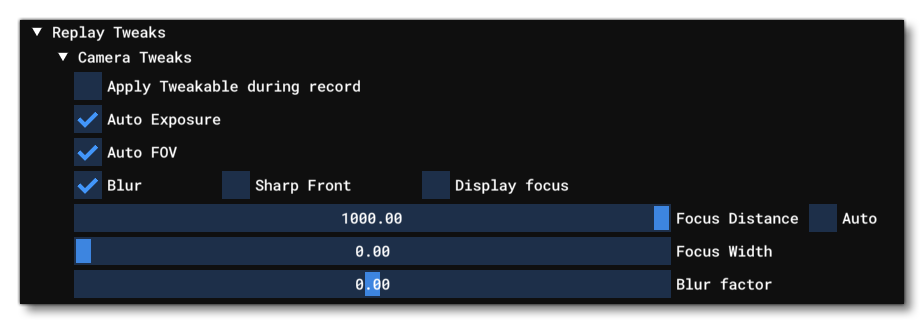
This sub-section lets you define certain aspects of the camera being used to create the capture frames. It has the following options:
-
Apply Tweakable During Record
Checking this will mean that the rest of the options in this section will be recorded during the capture.
-
Auto Exposure
Checking this tells the camera to use automatic exposure settings when performing the capture. Un-checking this will expose a slider where you can set the exposure level manually.
-
Auto FOV
Checking this tells the camera to use automatic exposure settings when performing the capture. Un-checking this will expose a slider where you can set the exposure level manually.
-
Blur
This is used to enable/disable the depth of field blurring effect.
-
Sharp Front
When checked this ensures that - when blur is enabled - the foreground blur isn't rendered.
-
Display Focus
When checked this enables the "focal point overlay" which can be used to see where the focal point of the camera is at any given moment.
-
Focus Distance
This is used to set the position of the focal point (where the image is sharpest) according to the position of the camera at any given moment. The higher the value here, the further the distance of the focal point. Beside the slider you have an additional option Auto which - when checked - sets the focus distance automatically, calculated based on the center of the display.
-
Focus Width
This is used to set the width of the focal point area. The higher the value here, the larger the area that will be in focus and sharper.
-
Blur Factor
This is used to set how much blur is applied to the regions that are outside of the focal point area.
Camera - The Replay Panel
This section is used to setup and record the aircraft sequences as well as the different camera tracks. It has the following options:
-
Sequence Recording
- Record : Creates a new sequence and starts recording the aircraft motion, inputs, and a base camera track.
- Stop : Stop recording the sequence.
- Record
-
Set Sequence Location
A sequence is simply a recording of motion and inputs, and as such can be placed anywhere in the world. After recording a sequence, you can fly the aircraft to a different location and then click this button so that all recorded sequences play from the new position.
-
Reset Sequence Location
This is used to reset the sequence location to the initial starting point after having moved the location.
-
Recorded Sequence
This is a drop down list of all recorded sequences.
-
Name Recorded Sequence
Here you can give the current sequence a name and eitherSaveit orDeleteit.
-
Timeline Controls
- Timeline: This is the timeline "scrub" tool. It represents the length of the sequence from beginning to end with the play-head shoing the current position. You can click on it and drag it around to position the play position anywhere and "scrub" through the whole sequence to find the shot you need.
- Play / Pause
 : This button is used to play or pause the currently selected sequence.
 - Stop : This will stop any currently playing sequence.
- Track Selection: This permits you to select the camera track to use for the visualisation. By default track 1 is the camera that was used to record the sequence, and all others are custom camera tracks.
-
Camera Track Recording
- Record : Clicking this will create a new camera track, and prime it to record when a sequence is next played.
- Stop : This will stop the recording of any camera tracks.
- Record
-
Load And Save
Save: After initially saving a sequence capture project, you can use this button to save it again, without having to open the file explorer and select a location.Save As: This will open the file explorer and prompt you to save the current sequence capture project somewhere. After using this button, you can then save the project directly to the location using theSavebutton.Load: This will open a file explorer and prompt you to load a sequence capture project (with the*.ReplayDescextension).
-
Show / Hide UI
This option will toggle the in-simulation UI on or off.
World - Tweakables

From this tab you can tweak a few of the basic parameters related to the world around. These are global tweaks that will apply to all sequences and cameras.
Weather

This section can be used to setup certain details related to the weather, and has the following options:
-
Time Factor
This defines the factor by which the changes in the weather will be calculated. Increasing this value will simulate a timelapse effect - speeding the rotation of the sun and the scroll of the cloudmap, etc... - while decreasing the value will effectively create a slow motion effect (although much less perceptible).
-
WetSpeed
By default in the simulation, rainwater takes some time to appear on the ground. However this slider lets you speed this up, with a maximum setting of 1 meaning that the ground will instantly become wet when raining.
-
DrySpeed
This defines the speed at which ground water will dry. A lower value here means it will take a long time (with 0 being effectively "never"), while a higher value will mean it dries almost instantaneously.
Volumetric Clouds
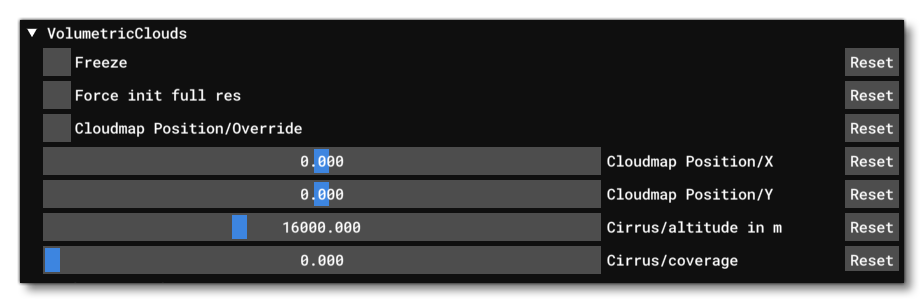 This section lets you change the way that clouds are displayed in the simulation. The available options are as follows:
-
Freeze
When this is checked, the cloudmap is "frozen" and will not reflect any changes due to the simulation until this is un-checked again.
-
Force Init Full Res
Checking this will force the clouds to be rendered at high resolution, regardless of the simulation graphics settings.
-
Cloudmap Position Override
Checking this permits you to change the position of the cloudmap using the two Cloudmap Position sliders.
-
Cloudmap Position X
This slider lets you move the cloudmap along the X-Axis. The slider will only work when Cloudmap Position Override is enabled.
-
Cloudmap Position Y
This slider lets you move the cloudmap along the Y-Axis. The slider will only work when Cloudmap Position Override is enabled.
-
Cirrus Altitude
This can be used to set the altitude of the cirrus clouds (in meters).
-
Cirrus Coverage
This can be used to set the density of the cirrus clouds.
Related Topics