COCKPIT AND CABIN LIGHTS
Many things in the aircraft cockpit will emit light, in particular the gauges, screens and different back-lit text elements for buttons and knobs, etc... Screens are independent UI features and are discussed separately (see here: Glass Cockpit Gauges), so here we'll concentrate on adding lights to gauges and elsewhere and using emissive textures for decals.
Emissive Textures
All of the buttons and switches in the cockpit will have lights inside them to glow at night, and there will also be text elements (created using decals) that should be emissive as well. This means that you will need to have an emissive texture as part of the decal texture. Below you can find an example of cockpit decal texture and the associated emissive texture:
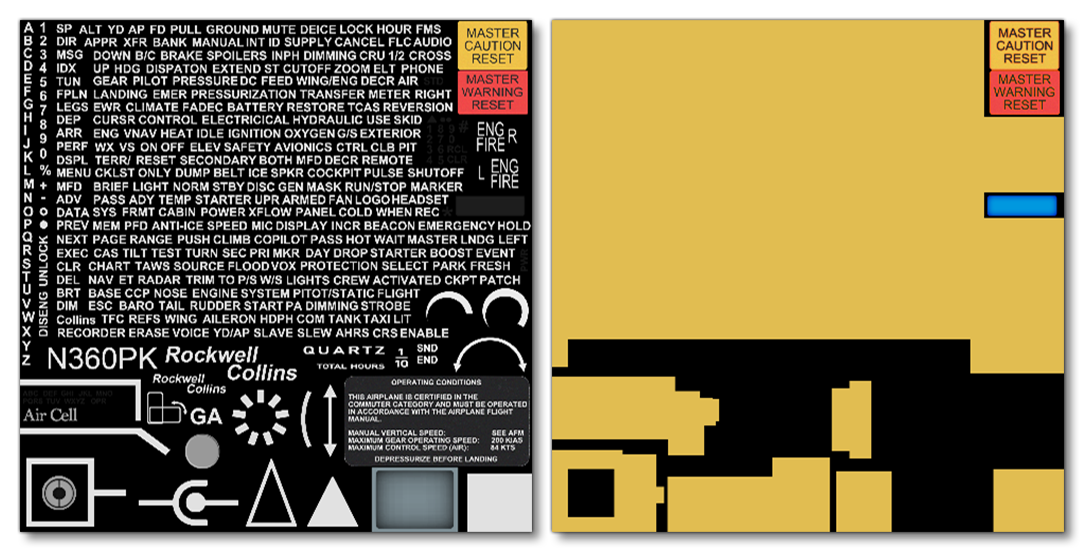
The needles on the various gauges will also need to be set to glow, and - like shown above - this is done with an emissive texture. As such it is necessary to identify all of the emissive elements that are not on the decals page and place these on their own texture sheet. This is preferable to using a single larger texture sheet with all the elements, as the simulation engine is optimised for multiple smaller sheets over single large sheets, and on larger sheets you will generally have more wasted empty space. You may add any cockpit lights to this emissive map as well, and be sure to texture details into these textures so that they are not flat colors.
NOTE: The emissive map is a separate texture that should have the same name as the albedo texture, except it should be suffixed with "_emis" instead of "_albd".
For large airliners it will probably be necessary to have a texture with all of the dials on it as these will all need emissive states. Obviously, the more dials there are, the bigger the texture will need to be, and in the worst case scenario there may need to be two 2048px textures for the dials. However you can make the emissive textures smaller as they can have some blurring.
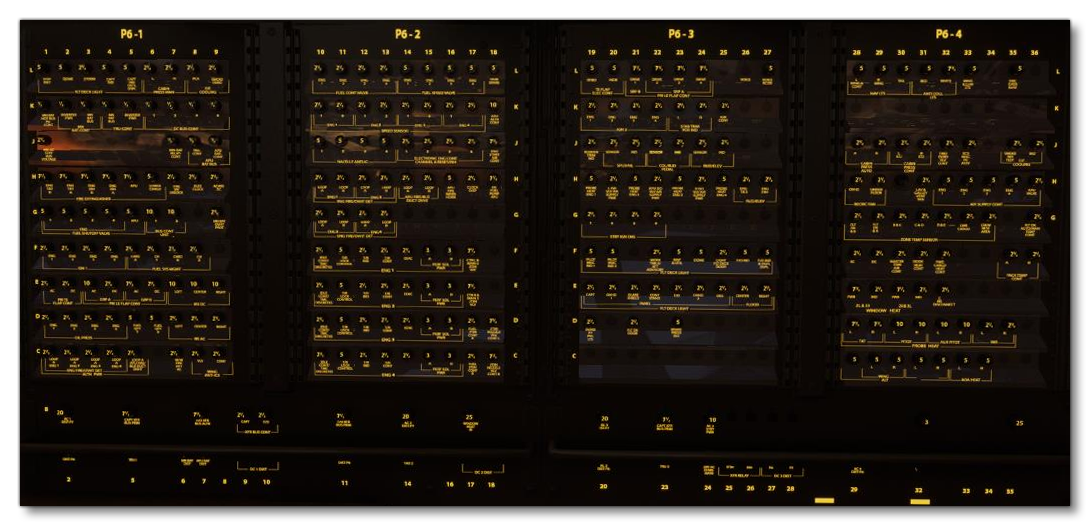
Any other lights in the cockpit or cabin, like overhead lights or glareshield lights, will also need to be assigned an emissive material. In general you want to have a Decal material for any text, gauges, or signs, and then a separate Standard material for all other lights. The setup for these materials is the same as that outlined in the section on airframe lights:
If you are using Blender, it is possible to approximate how your emissive elements will look in the simulation, which is explained in the following section: Emissive Previews In Blender
Lightdef Placement
For the aircraft interior lights, you do not add them in the model itself, and instead you will be adding them through The SimObject Editor Systems tab, using the lightdef.N parameter. This is all explained in detail on the Implementing Lights page, so here we're simply going to show some examples of what the lights will look like in the simulation and recommendations for how they should be setup.
Spot-Lights
In most cases, you will not only create a spot-light in the lightdef, but also an accompanying omni-light. When a spot light shines on an object, some of the light is reflected back into the cabin, giving incidental lighting to the other objects around it. This can be fully simulated using ray-tracing, but that's intensive and unnecessary for what we want to achieve, and so instead we simply use a very dim omni-directional light to simulate this effect. Consider the following two images:
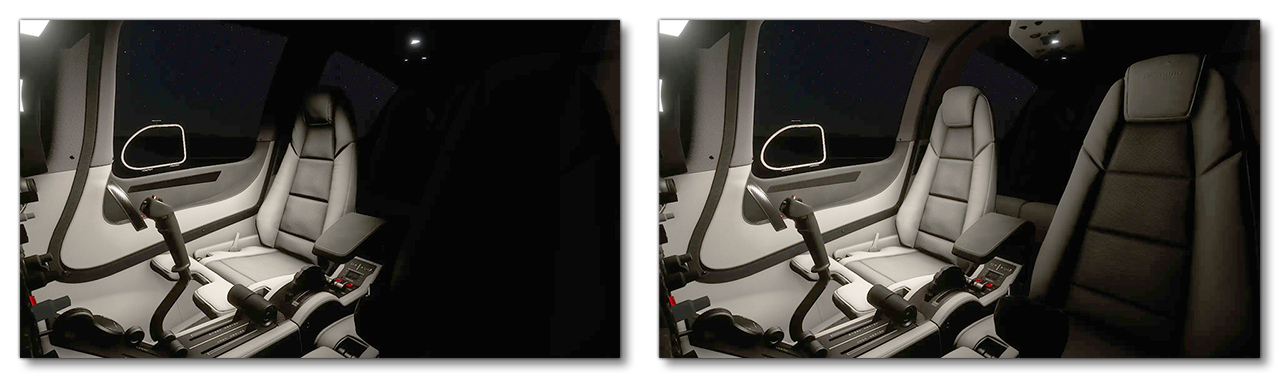
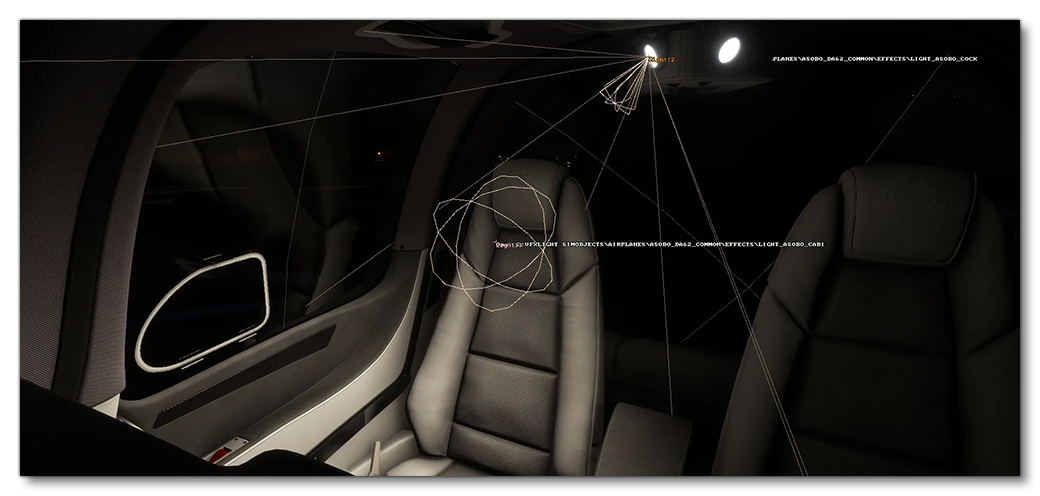
The image on the left has a single spot-light shining in the scene, and you can see that the area around the focus of the light is a lot darker than it would be in "real life" as there is no incidental light scattering onto the other objects in the scene. The image on the right, however, is far more realistic thanks to the addition of an omni-light source roughly half-way between the spot-light and the object directly in front of it. The image below shows this placement in the scene:
Glareshield
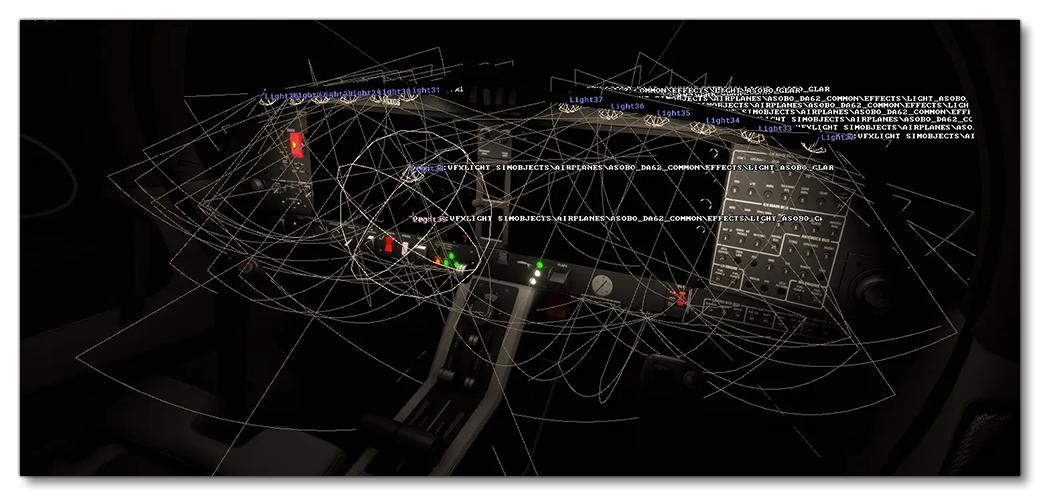
The glareshiled will need several spot-lights added to simulate the flood lights most glareshields have facing down onto the cockpit controls. However, these lights - like other spot-lights - will also require an additional omni-directional light to fake the additional luminosity from reflected light. The following image shows the difference this omni-light can make:
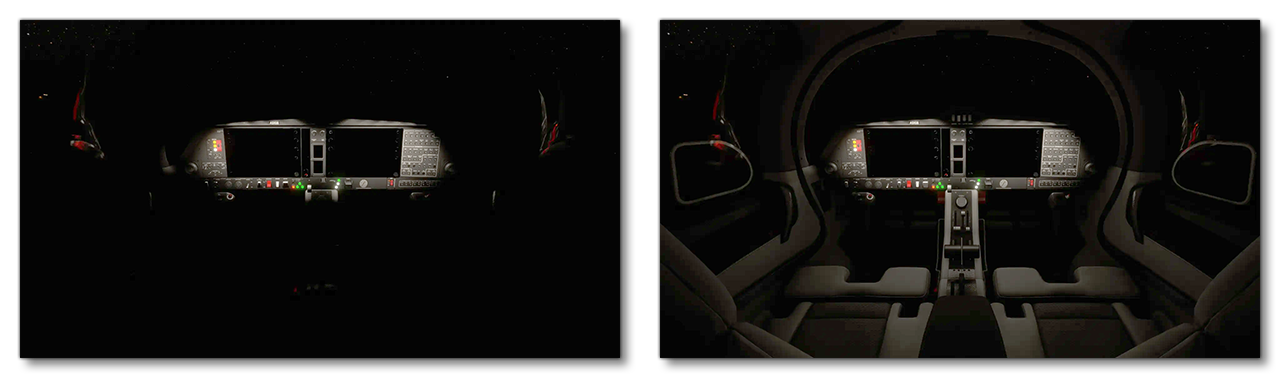
The image below shows this placement of the various lights in the scene, with multiple spot-lights and a single omni-light placed just in front of them:
Screens
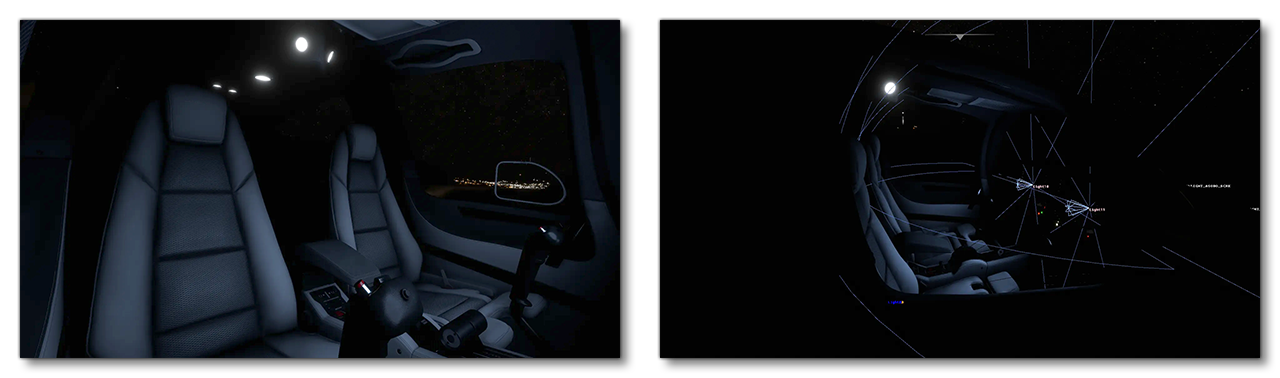
To simulate the light emitted from the virtual cockpit screens, you should have a dim spotlight for each screen. These can generate a nice rim light effect on the yokes, and slightly illuminate the seats, leading to a nice soft ambient atmosphere when no other light is on in the cockpit. Since these lights are not dynamic - they can't be changed dynamically to reflect the contents of the screen - the lights should be coloured to match the screen average or the dominant colour of the page that is most comonly used. The images below show how the screen lights will look when they are the only light sources in the scene, and then the positioning of the lights themselves:
Related Topics