EFB TEMPLATE SAMPLE
The EFB sample contains a simple template project that can be used as a base for creating your own EFB apps. For more information on creating EFB apps, please see here:
It should be noted that before you can use this template you will need to have performed the necessary setup steps, which are outlined in the following section:
Loading And Testing The Project
In order to load and build the project in Microsoft Flight Simulator 2024, you must have previously enabled Developer Mode (see here for more information). Once enabled, simply follow these steps:
- Use the Open project... command from the File menu.

- Select the file
EFBTemplateAppProject.xmlfrom theEFB>TemplateAppsample project.

- The Project Editor should open automatically and show you the project
efb_apps_template(if the Project Editor doesn't open, then you can open it from the Developer Mode Tools menu).

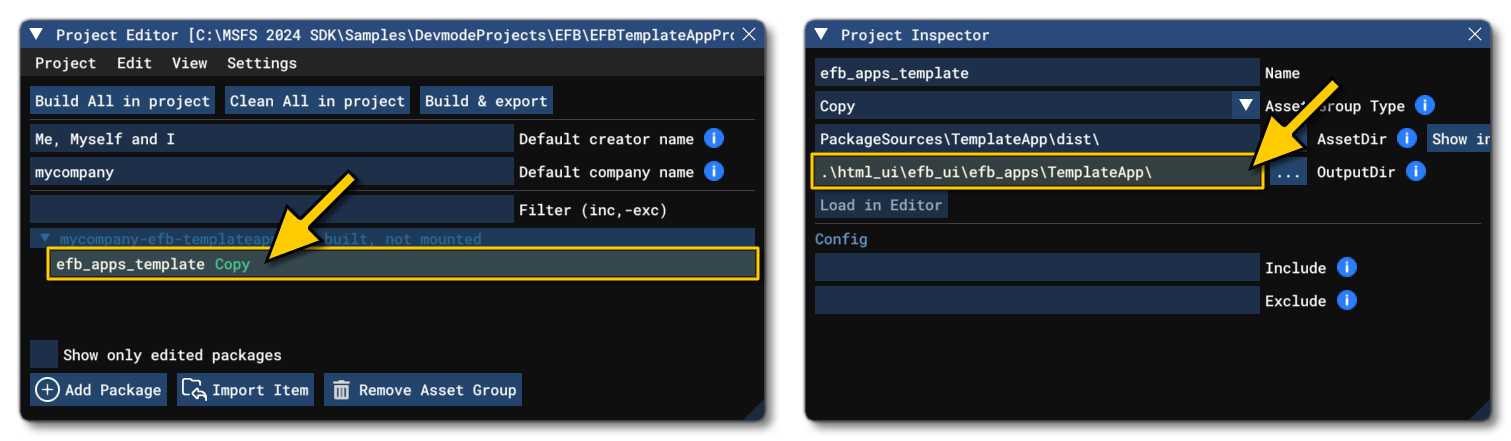
- Expanding the package to see it's contents, you'll find that we are using a Copy asset group. Thi is because EFB projects are comprised of XML and JS files, which only need to be copied into the final package and placed in a particular output folder. You can see where these files are stored by selecting the asset group and then looking at the OutputDir in the Inspector window:
- There is nothing more to do with this package in the DevMode editors, as it needs to be built to be usable by the EFBs in the simulation. For that you can click the
Build All In Projectbutton at the top of the Project Editor. Note that this should be done before starting a flight.
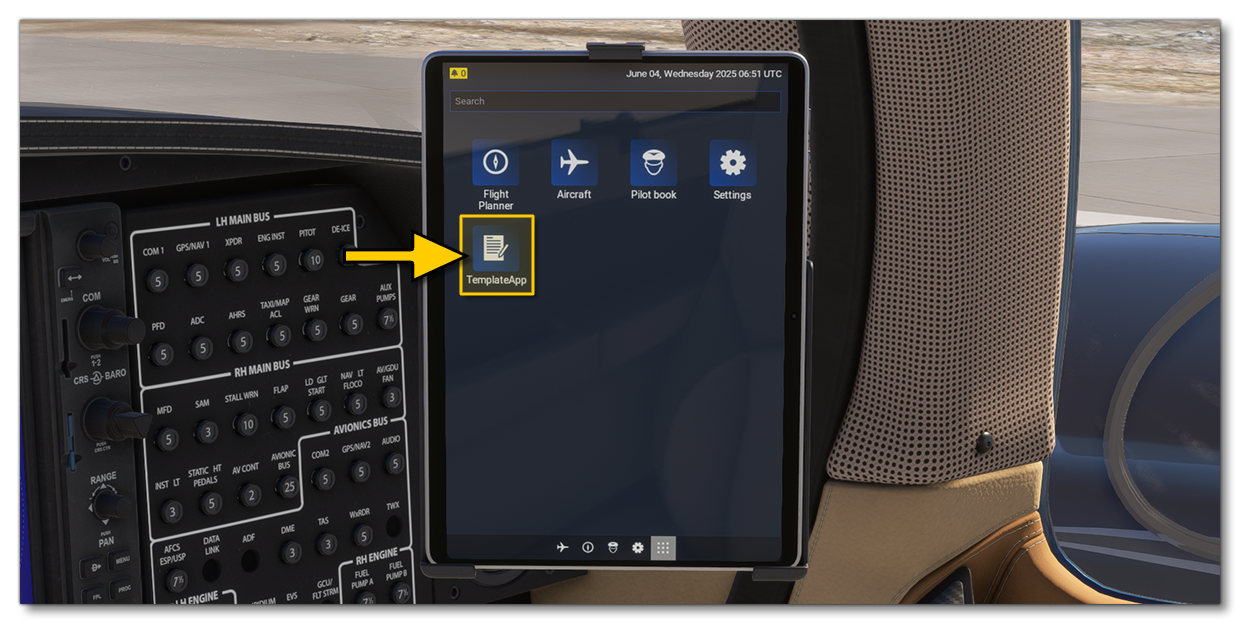
- After building the package, start a flight using any aircraft with an EFB (we recommend the DA 62). You will see the new app on the main screen, named TemplateApp.
- Tapping on the app will open the following page:
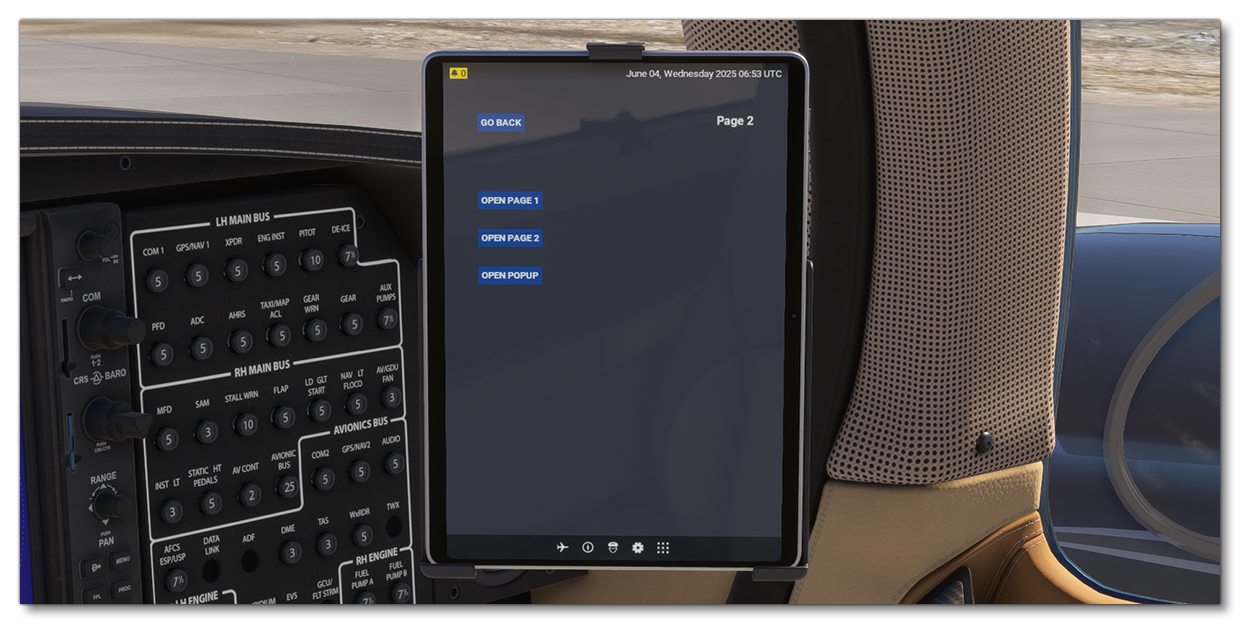 Clicking the buttons will open different pages, show a pop-up message, or go back to the main screen with the app list again.
0/255