SIMPLYGON SIMPLE SCENE
The SimplygonSimpleScene sample illustrates how some scenery objects can have their LODs auto-generated using the Simplygon SDK. The exact process for setting up the files in this example - and in your own projects - is outlined on the following page:
Loading And Building The Project
In order to load and build the project in Microsoft Flight Simulator 2024, you must have previously enabled Developer Mode (see here for more information). Once enabled, simply follow these steps:
- Use the Open project... command from the File menu.

- Select the file
SimplygonSimpleScene.xmlfrom theSimplygonSimpleScenesample project.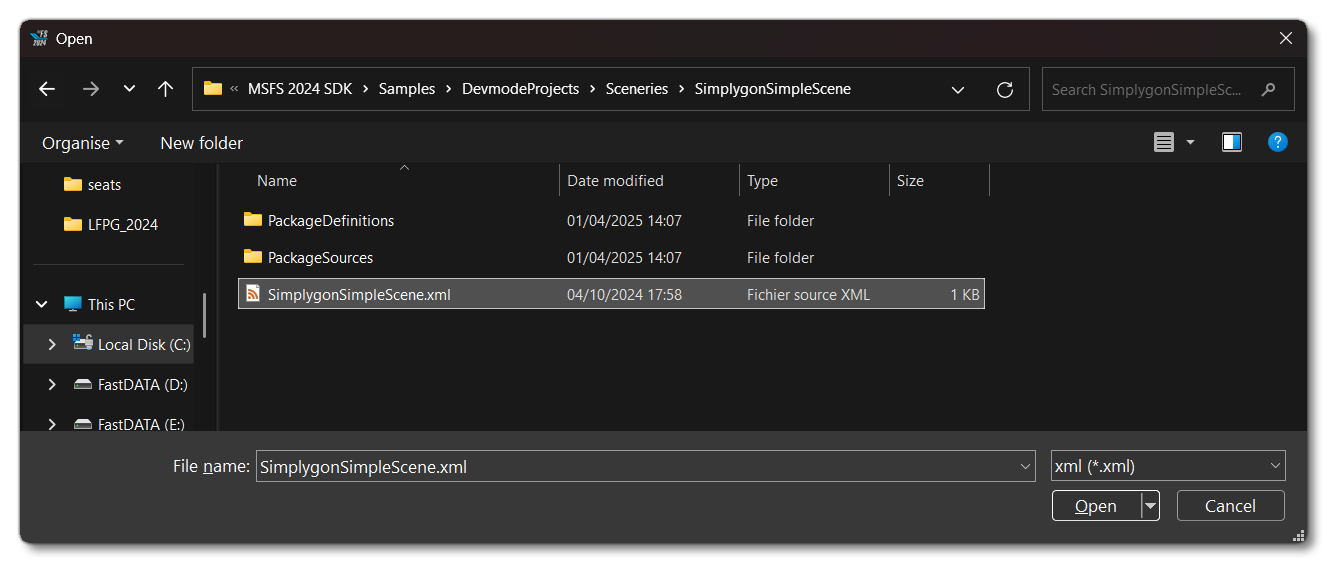
- The Project Editor should open automatically and show you the project
mycompany-simplygon-simple-scene(if the Project Editor doesn't open, then you can open it from the Developer Mode Tools menu)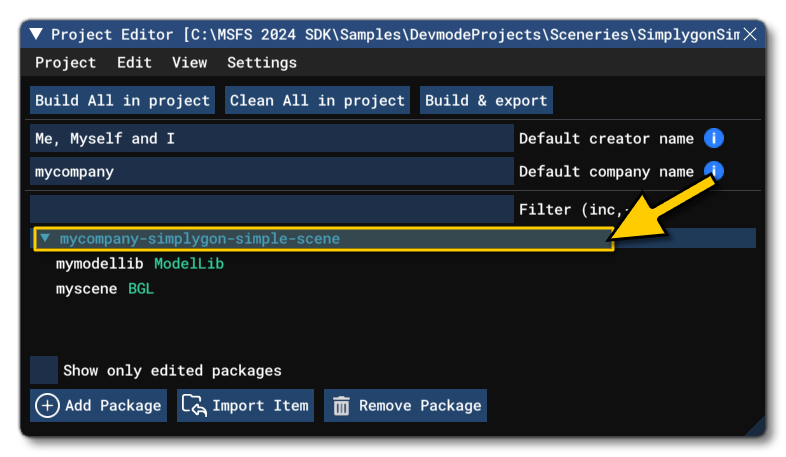
- Once the project is loaded, you can right-click on it, and select the Build and Mount option.

- This will build a package from the files specified in your project. This package will be named
mycompany-simplygon-simple-sceneand will be output in the Packages folder created in the same directory asSimplygonSimpleScene.xml: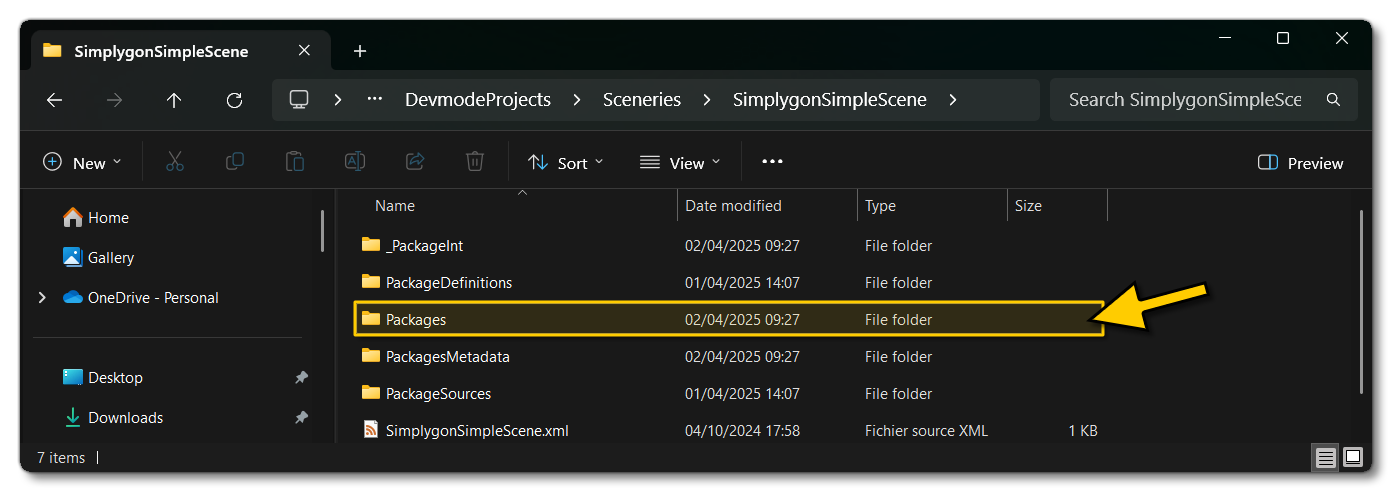
- To get to the scenery location, you need to start a free-flight, anywhere in the world, and then select the Scenery BGL in the Project Editor. Once selected, open the project inspector and click on the
Load In Editorbutton:
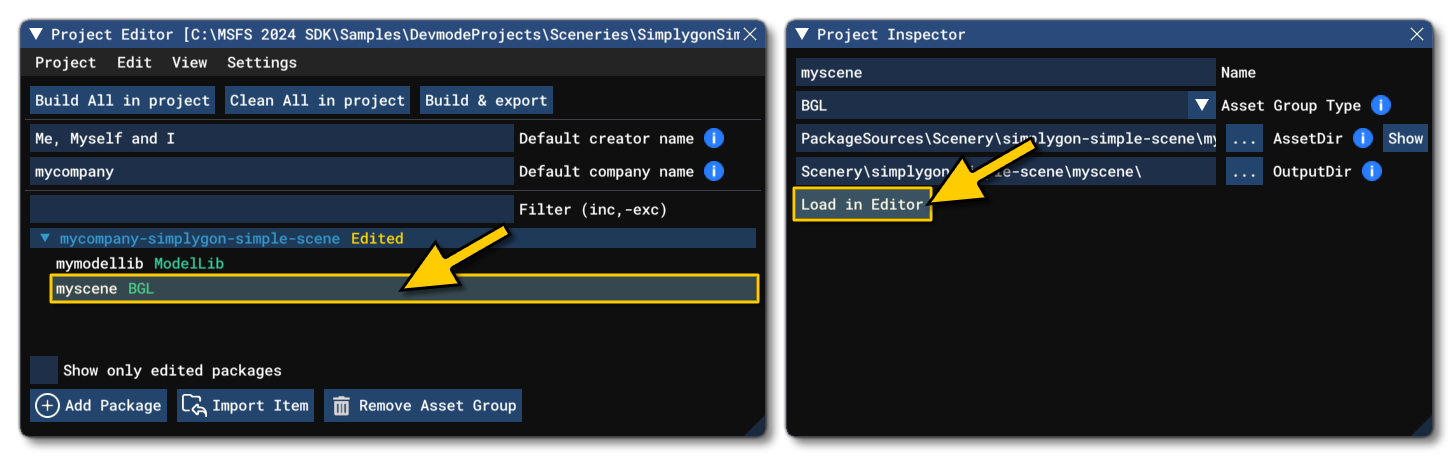
- Clicking this will load the Simplygon sample in the Scenery Editor, and if you
double-clickon the single item listed in the scenery contents list, the camera will pan to the object: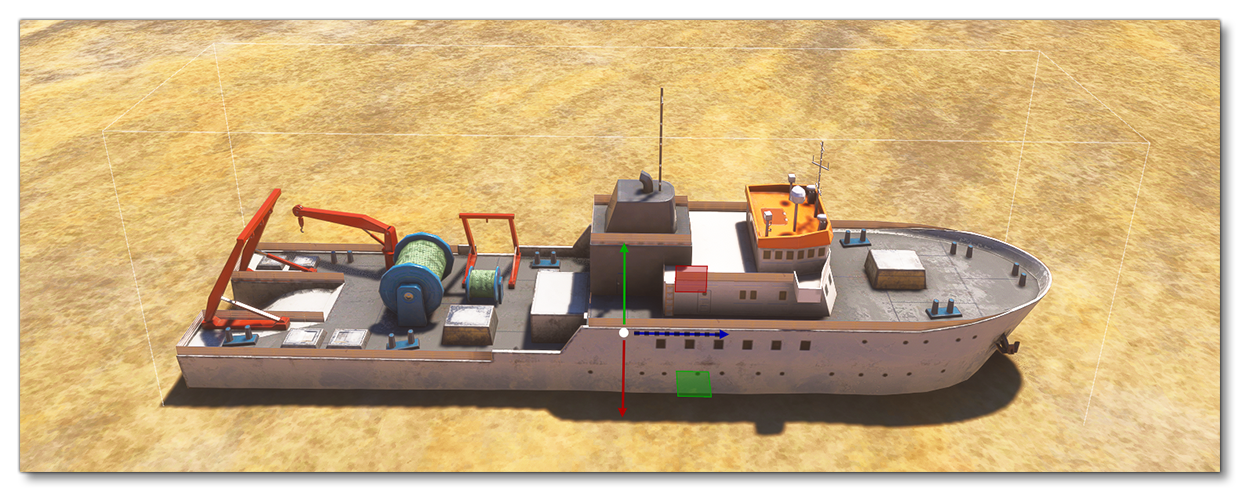
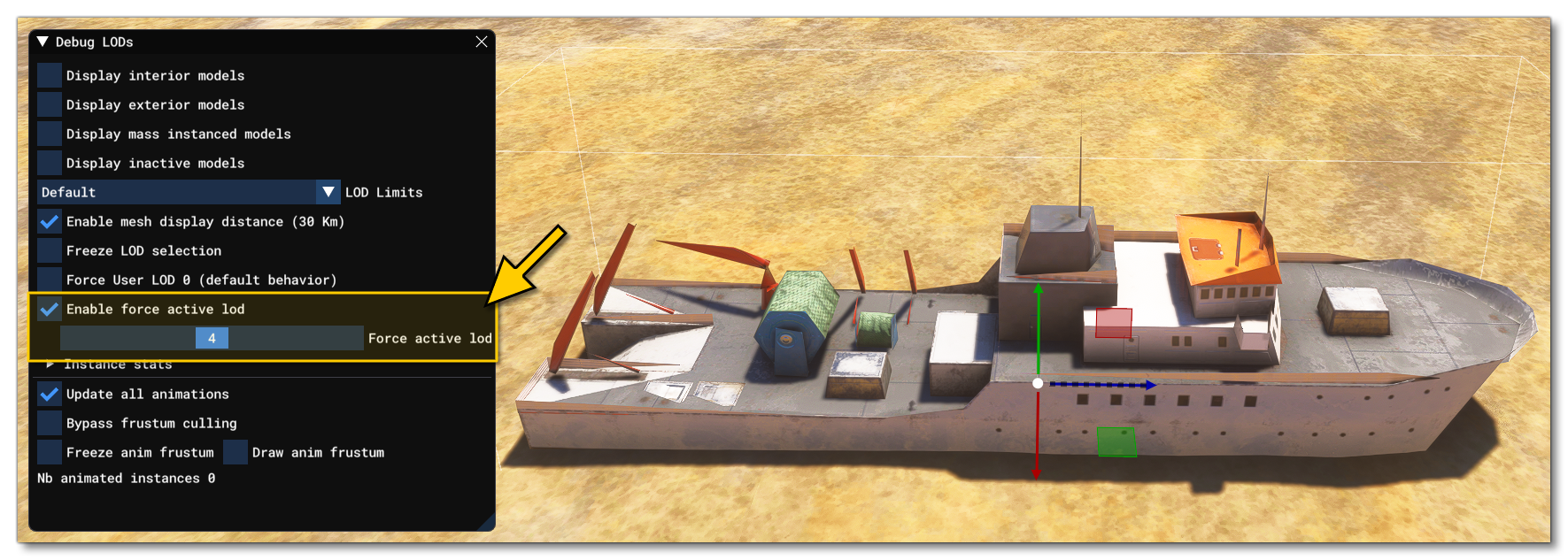
- Once you are at the scene, you can check the LODs that were created by Simplygon using the Debug Model LODs window, enabling the Enable Force Active Lod option and then scrolling the slider:
Related Topics
0/255