FROST AND ICE
This page outlines the procedure for creating an ice mesh for the aircraft airframe.
NOTE: for window icing, please see the Icing section of the Windshield And Windows page.
When creating this effect, try to think about it logically: the more a part of the airframe is exposed to the wind when the plane is flying, then the more it will be affected by frost and ice. There will also be some parts which react differently based aspect of the aircraft itself, for example around the exhaust it can be hotter so there would be less frost.
Creating The Mesh
All ice and frost effects will be applied using a custom mesh that should be created by duplicating the geometry meshes of the aircraft and then removing the parts that won't be getting any ice cover. This ice/frost geometry mesh should be expanded (using the push modifier in 3DS Max, for example), so as not to clip with the main aircraft LOD0 mesh, and also be shown over any additional livery meshes that may exist for the aircraft. You will also want to delete all the unnecessary faces that won't be affected by the frost/ice and then further modify the geometry of shape if needed to get the "cover" of the frost/ice correct. The goal here is to have the most optimized mesh possible while still having a good looking frost/ice effect in the simulation.
NOTE: This simplification is crucial as the frost/ice meshes will be directly added to the overall parts polycount which - if not optimised properly - will make the LODs switch sooner than expected, because of the LOD Selection System.
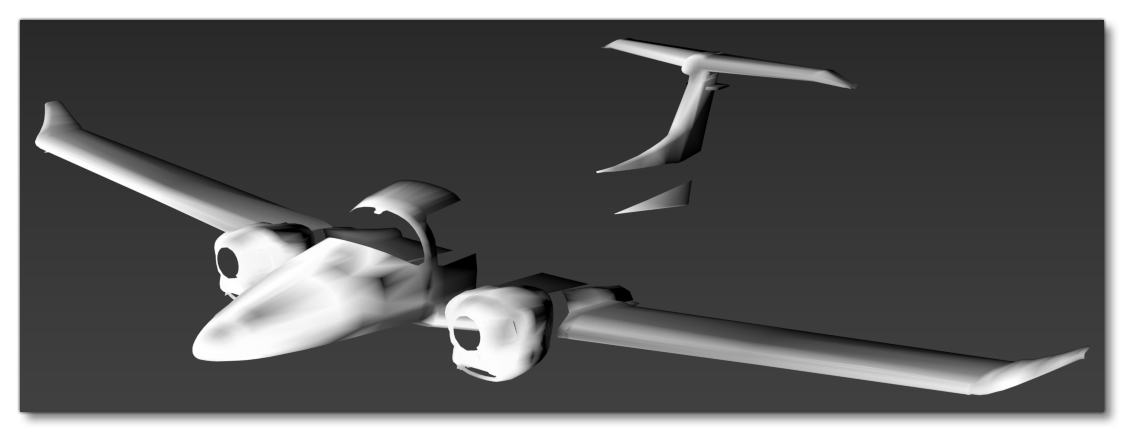
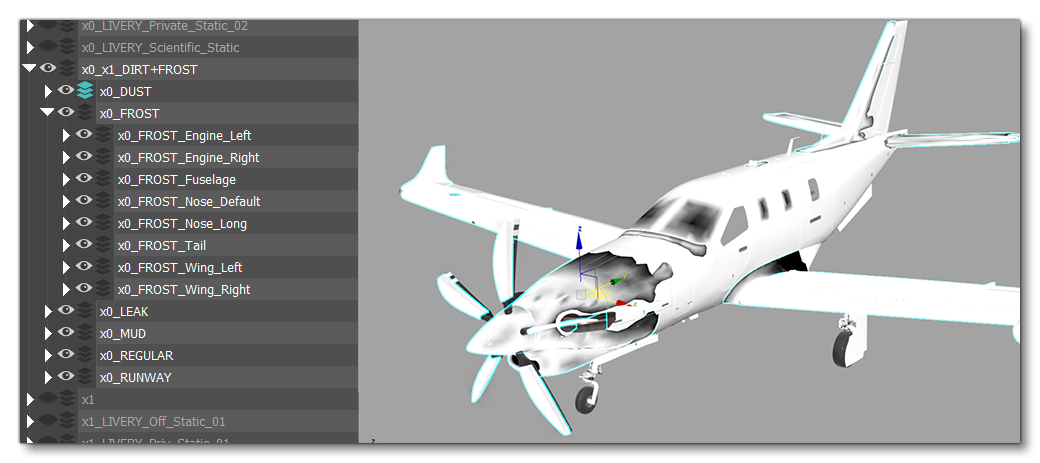
Having created the initial mesh, it can be put in a separated layer which should be called something like x0_FROST. For optimisation reasons, we recommend that you use the same mesh for LODs 0, 1 and 2 since it's so simple, and then further simplify it for LODs 3 and 4, and then create a final - heavily simplified - mesh for LOD5. Make sure to name the LOD meshes to reflect the LODs they'll be used on, for example: x3_FROST).
The different LOD meshes should be placed in the appropriate parent folder, normally the one used to contain the dirt and grime meshes as well. You will also want to separate the mesh into different parts depending on how you have set up the aircraft, so that it can be exported with the correct sections (eg: fuselage, wings, tail, etc...). This way it will be compatible with the Modular SimObject project format (this is explained in more detail further down this page).
The Ice Material
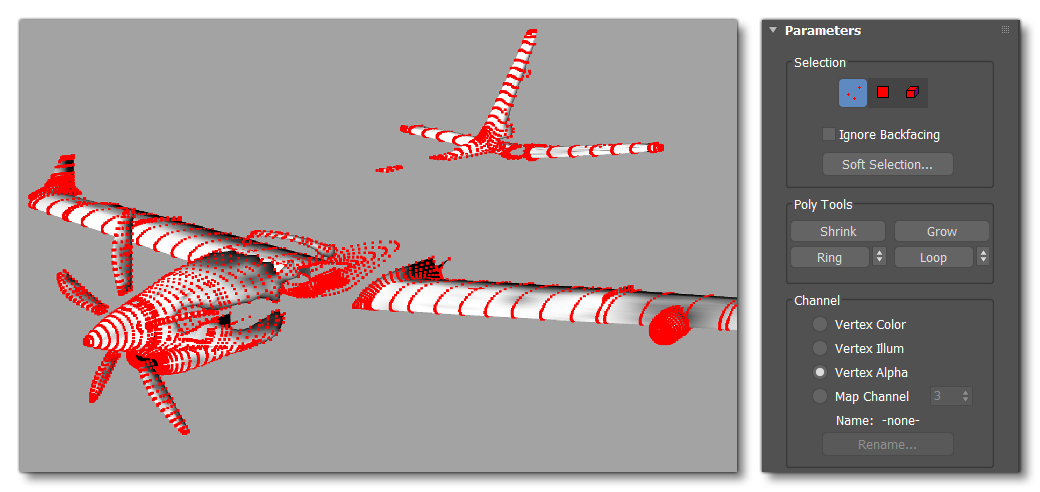
For the actual ice texture and material, you'd use the vertex paint modifier to paint on the vertex alpha, where more icing will appear on the "white" areas and less will appear on the "black" areas:
Once you've painted the vertex alpha, we can setup the material. For ice it needs to be the GeoDecalFrosted material and uses the Melt pattern(R) Roughness(G) Metallic(B) and Detail Normal textures.
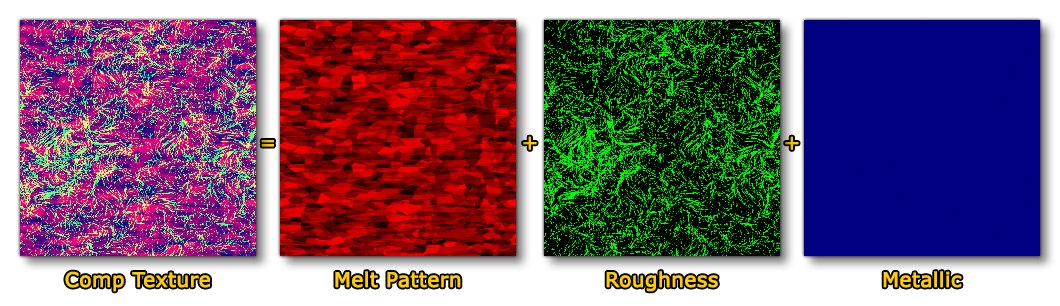
You can create your own textures for this, or you can find versions of these textures which you can use in your own aircraft in the Shared Assets folder installed as part of the Microsoft Flight Simulator 2024 SDK. They are called:
Frost_Detail_AORoughMetal.pngFrost_Detail_norm.png
You can also find additional textures for the albedo and normal textures in this folder if required.
To create the material itself you pay attention to the following parameters:
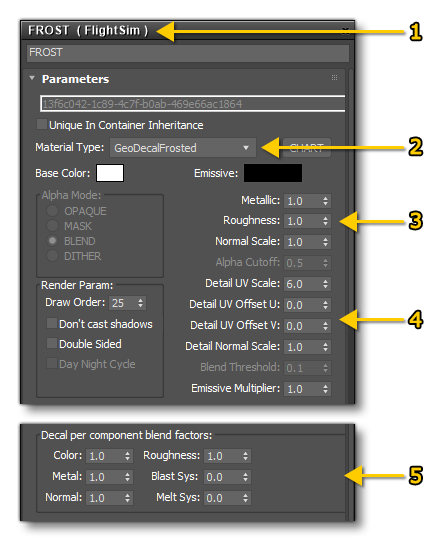
- Create a new FlightSim material
- Call it "FROST" and set the Material Type to GeoDecalFrosted as well
- Set the Metallic / Roughness / Normal values as required.
- Tweak the UV scale and offset values to suit the model UVs.
- Set the Blast Sys and/or Melt Sys values. Note that these ones will work only if you have some anti ice system in the aircraft. Using these also means that if you want ice to melt on some parts but not on the other ones you should have 2 distinct materials, one with blast/melt set between 0 and 1 and the second material with the blast/melt set to 0.
This can be tested in the simulation by using the Icing Option in DevMode (note that this will not work if the simulation options are set to have icing off - see the in-simulation Assistances > Realism > Icing Effect option and ensure that this is enabled):
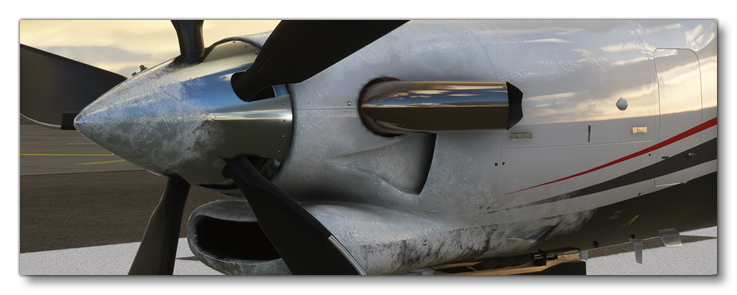
NOTE: The DevMode icing option is there to debug the visual effects but can't be used to debug aircraft de-icing systems as the icing conditions are not forced by this setting. The easiest way to test de-icing systems is to switch to the "Snow" weather-preset and use Slew Mode to place the aircraft in a cloud.
Notes On Vertex Alpha
When working in 3Ds max to generate ice meshes (or anything else that requires the setting of the vertex alpha), please be aware that there is currently a bug in the workflow. When you set the alpha value here:
 It will not be applied on export without first having edited some other property for the vertices. So, to avoid this issue, the recommended procedure would be to
- set the vertex alpha for all vertices that require it to be changed
- open the color picker and change the color of one vertex
- close the color picker to apply the color
- open the color picker again and reset the color back to what it was originally
- close the color picker to re-apply the color
Just doing this once will force 3Ds Max to correctly store the alpha for all vertices.
Exporting
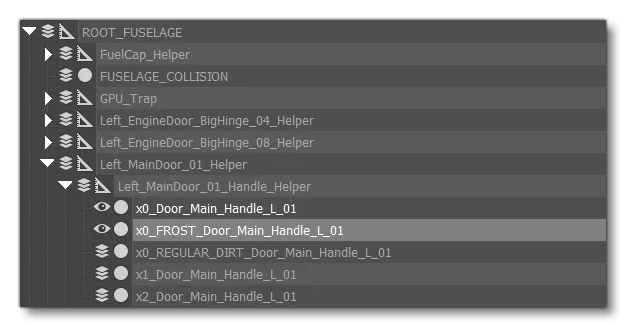
When it comes to exporting the model, you will need to ensure that the icing meshes are split into parts, and the LODs are added into the appropriate parent layers. For example, here we have a single parent layer for the x0, x1, and x2, LODs since we have used a simple geometry for all of them:
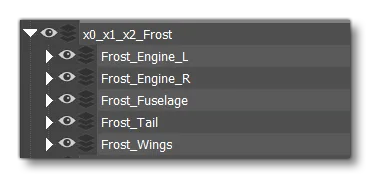
When it comes to the export hierarchy, you will need to parent your frost / ice meshes to their respective ROOT parts, or link them directly to the animation dummy (if, for example, there is frost / ice on a door). All the moving parts need to remain with the same hierarchy as the main meshes, with sub-layers for each part. Each Sub-layer will be exported with their respective part.
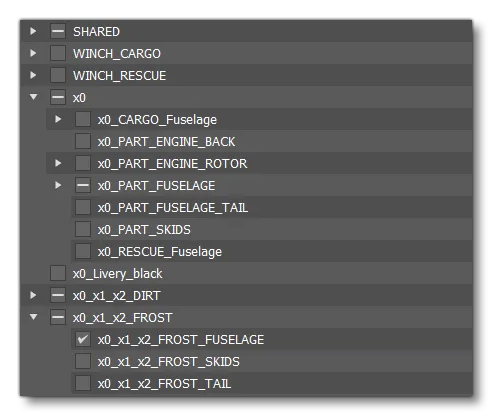
In the multi-exporter, you can then check the appropriate parts for export, for example the image below is exporting the frost / ice mesh for the fuselage with the fuselage mesh: