SIMPLE FX
The SimpleFX sample illustrates a basic "Engine Smoke" VFX package for Microsoft Flight Simulator 2024. Making this example required using The Visual Effects Editor to create the effect, along with the use of The Material Editor to create a custom material for the effect particles. Note that to test this sample you will need to be in the simulation, so you should have selected an aircraft and a departure airport and started a flight before going ahead and loading the sample.
Loading And Testing The Project
In order to load and build the project in Microsoft Flight Simulator 2024, you must have previously enabled Developer Mode (see here for more information). Once enabled, simply follow these steps:
- Use the Open project... command from the File menu.

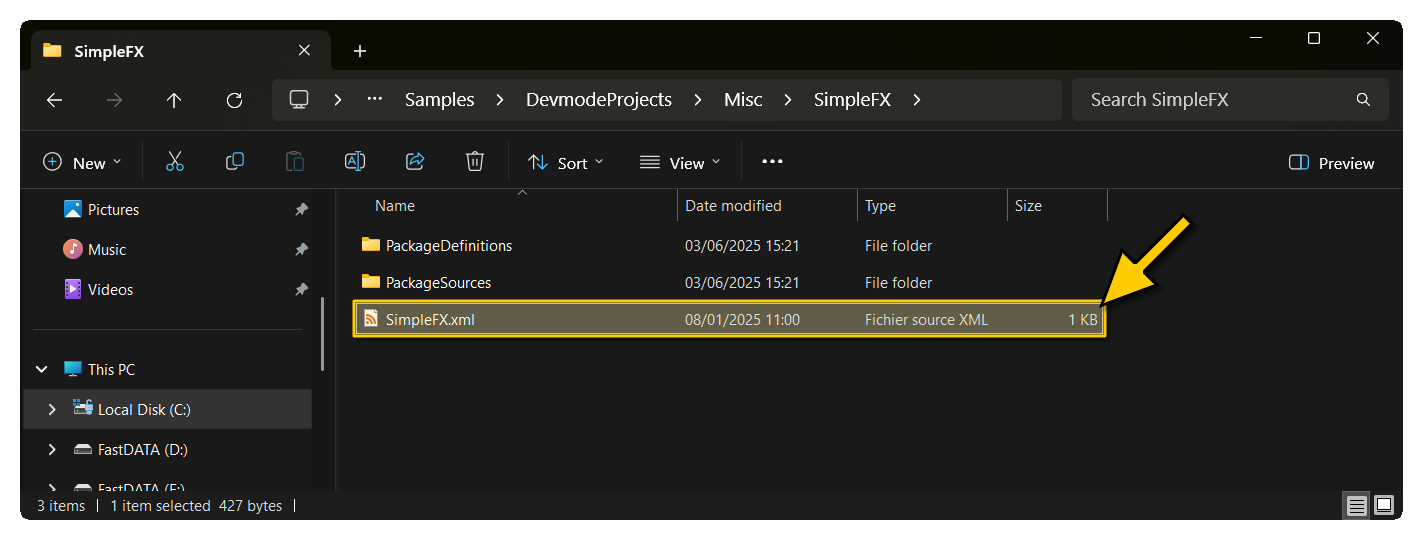
- Select the file
SimpleFX.xmlfrom theSimpleFXsample project.
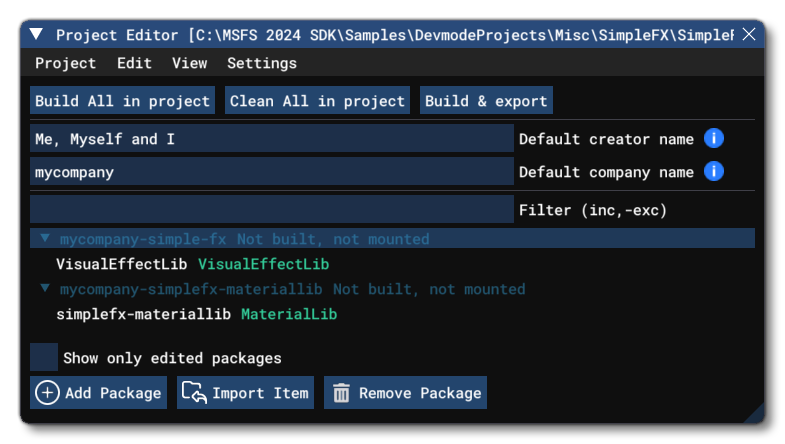
- The Project Editor should open automatically and show you the project
mycompany-simple-fxandmycompany-simplefx-materiallib(if the Project Editor doesn't open, then you can open it from the Developer Mode Tools menu)
- Before exploring the contents of the packages, we will need to build them, so you should go ahead and click the
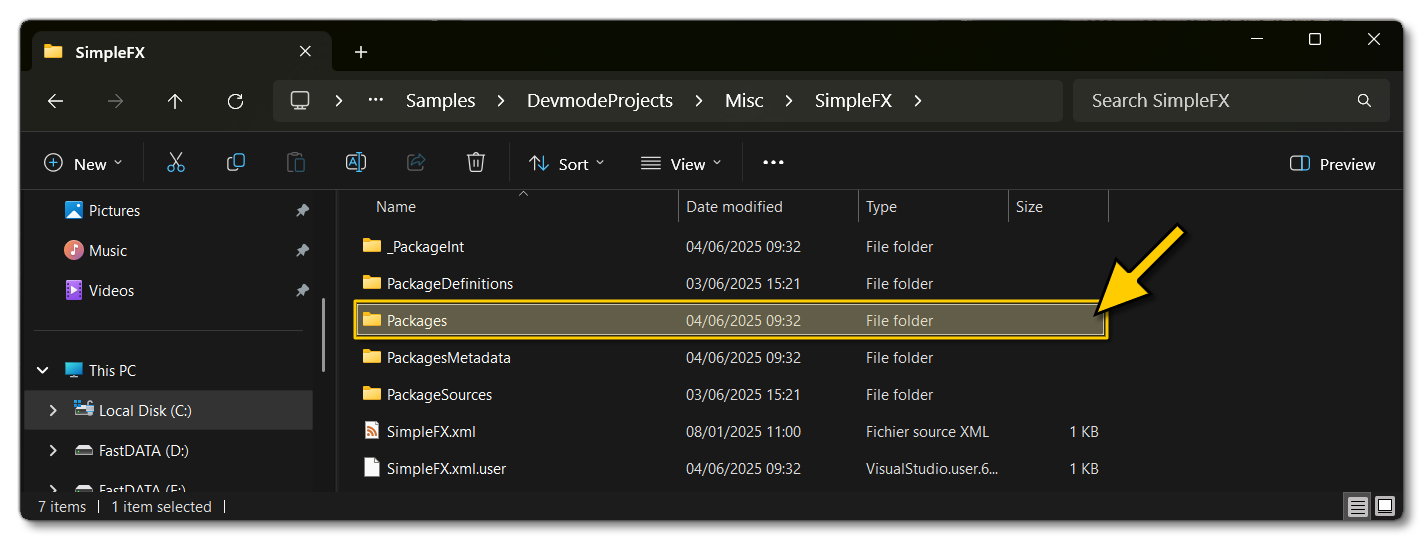
Build All In Projectbutton build the project and mount the created package in the VFS. The packages will be namedmycompany-simple-fxandmycompany-simplefx-materiallibwill be output in the Packages folder created in the same directory asSimpleFX.xml:
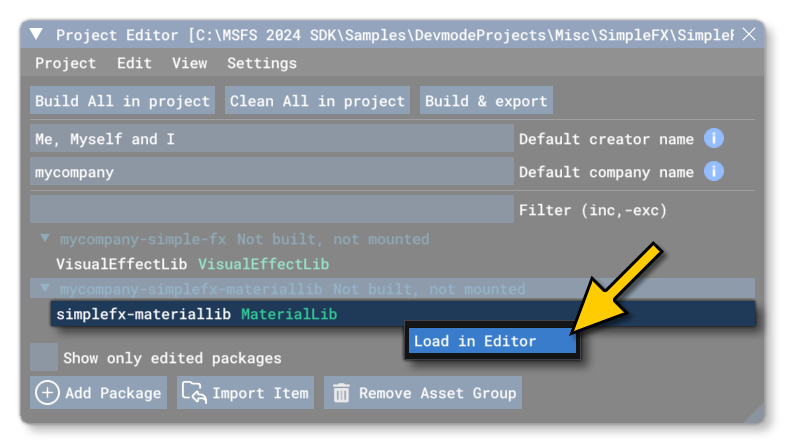
- You can now use the DevMode editors to explore the contents of each package asset group. To start with, lets look at the MaterialLib, so simply right-click on it and chose Load In Editor:
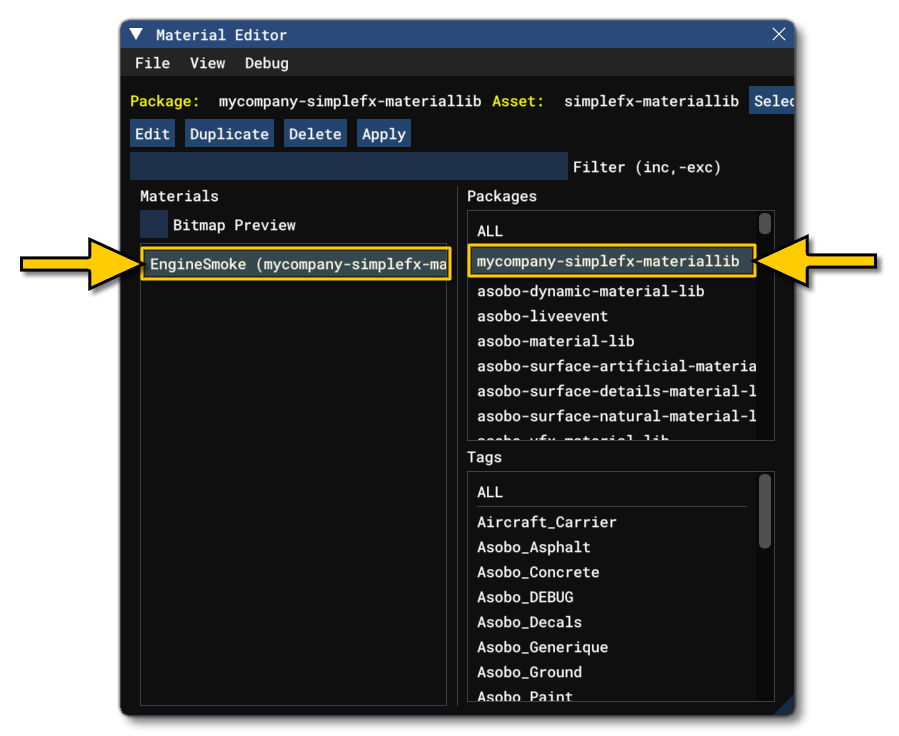
- This will open The Material Editor, and here you can find the material used by the package filter on the right and selecting
mycompany-simplefx-materiallib. This should now show the "EngineSmoke" material in the materials list:
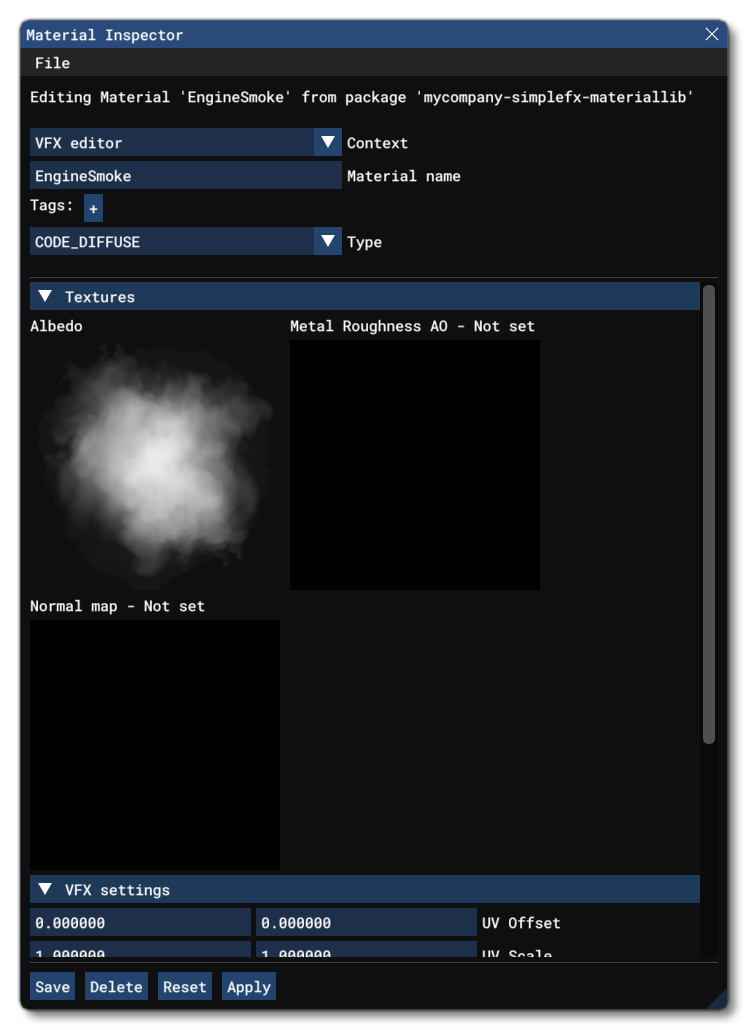
If you then click theEditbutton, you can see the contents and setting of the material that the VFX will use:
- To view the actual VFX that will use this material, you can go back to the Project Editor and select the VisualEffectsLib and then, as before, right click on the asset group and select Load In Editor. This will open The Visual Effects Editor and there you can click on the
EngineSmoke.xmlto open the effect parameters in the VFX Node Graph: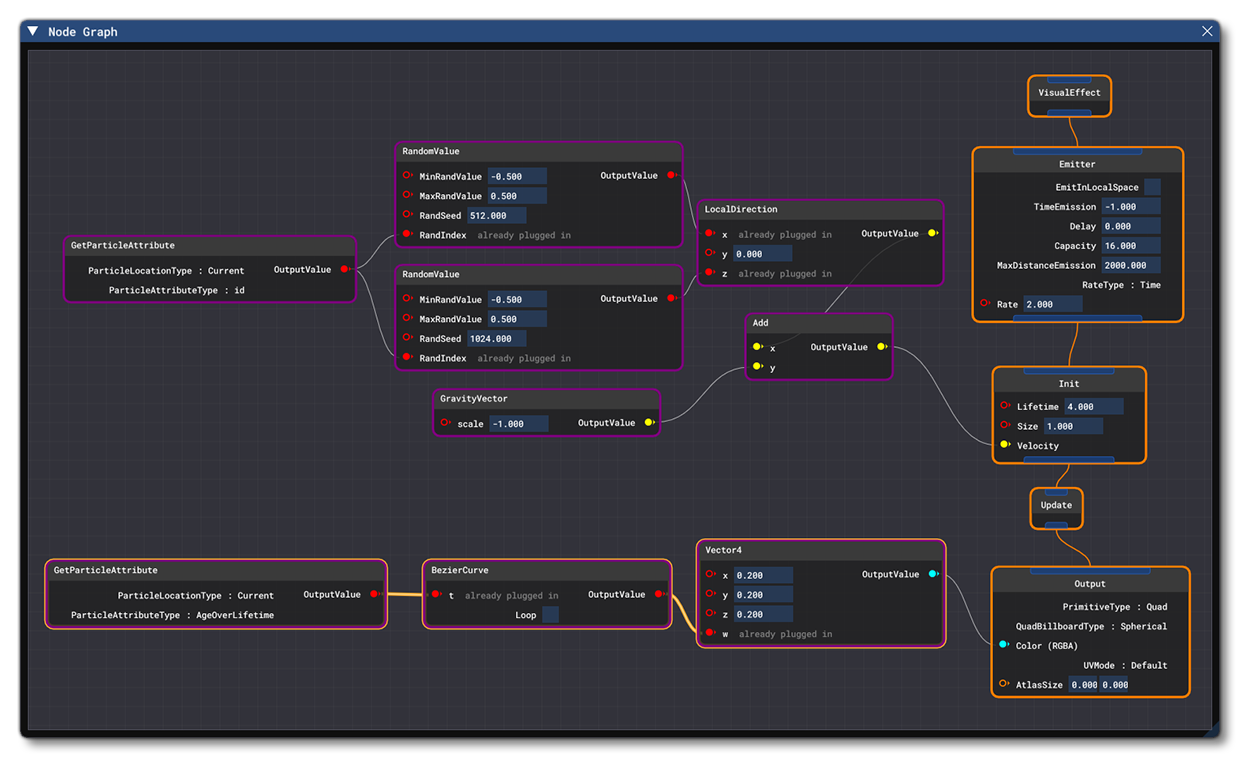
- You can test the VFX in the simulation by using the Spawn button in the VFX Templates / Instances Debugger window (if this isn't open you can open it from the View menu). There you simply need to go to the Spawner tab, then choose a contact point to spawn the effect on, and finally, click on the
Spawnbutton:
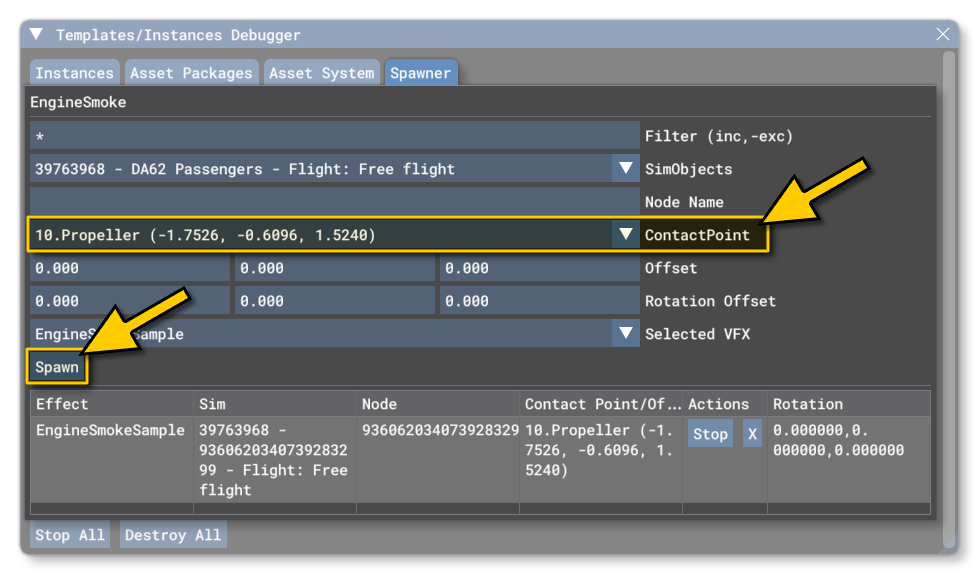
Once you've selected the contact point, all you have to do is click on the Spawn button and you'll see the effect being used in the simulation:

For details of how to use visual effects created using the Visual Effects Editor on SimObjects, please see the following page:
Related Topics