SPAWN PILOT (TRANSVERSAL)
When creating your aircraft for Microsoft Flight Simulator 2024 there is one navigation service that will be used under all conditions and that is the one to spawn the aircraft pilot (also called the "Transversal" because it is required by all careers and even freeflight). Even if you do not include the necessary files for this, the simulation will use a "generic" spawn sequence for the pilot, however it's recommended that you create your own spawn file for each aircraft you make so that it's fully integrated into the simulation. Also note that this file must be included for your aircraft to be eligible for the various other Career Activities, and will always be used for Preflight regardless of the flight mode.
For an aircraft to correctly spawn the pilot (and - optionally - the copilot), you will need to have first set up the Navigation Graph for the aircraft. This graph must be called the following:
navigation_graph_pilot.cfg
The base version of this file should always exist in the Common folder of your aircraft. If you have specific additional for a particular Preset or Attachment, then you should put an additional version of the file in the corresponding folder. For example, you might want to spawn in a different location if the same aircraft has versions with "classic" wheels or a version using larger amphibious landing gear. In these cases you can supply a common version of the file with only the shared nodes, and then in the presets supply another version of the file with the unique nodes for the variation and they will be merged as part of the merge process.
The Pilot Navigation Graph
The base navigation_graph_pilot.cfg should always be present in the common folder, and is required for the aircraft to be compatible with the MSFS 2024 pilot avatar. This file is used to spawn the pilot seat logic object which controls the interactions with the aircraft doors, as well as the seatbelts. This file will require the following minimal setup:
[Node.0]
name = PILOT_DA62
modelNode = PILOT_0
tag = PILOT_SEAT
interactiveObject = SEAT_DA62_Pilot
massSection = Pilot

[MassSection.0]
name = Pilot
stationLoadName = TT:MENU.PAYLOAD.PILOT
maxmass = 300
fillProportion = 1

[MainGraph.0]
nodes = PILOT_DA62
massSections = Pilot
The three important things to note here in relation to the setup for seats and seatbelts are as follows:
modelNode- This is the name of the attach point node on the model to spawn the seat logic object on. If this is not included then you will need to position the node manually using theposparameter (not recommended)tag- This must bePILOT SEAT. Any other tag here will cause issues since the The Default Pilot Navigation Graph will not be overriden.interactiveObject- This is used to register the seat logic object with the interaction manager. This name comes from thetitleparameter in the seat logic objectsim.cfgfile. Note that you may use theSEAT_DEFAULT_Pilotobject if you have not created your own, but this will not include seatbelt interactions, and seating animations may "clip", depending on the seat and cockpit models.
You may also include a second node specifically for the copilot, in which case the minimal setup would look like this:
[Node.0]
name = PILOT_DA62
modelNode = PILOT_0
tag = PILOT_SEAT
interactiveObject = SEAT_DA62_Pilot
massSection = Pilot

[Node.1]
name = COPILOT_DA62
modelNode = PILOT_1
tag = COPILOT_SEAT
interactiveObject = SEAT_DA62_Copilot
massSection = Pilot

[MassSection.0]
name = Pilot
stationLoadName = TT:MENU.PAYLOAD.PILOT
maxMass = 300
fillProportion = 1

[MassSection.1]
name = Copilot
stationLoadName = TT:MENU.PAYLOAD.COPILOT
maxMass = 300
fillProportion = 1

[MainGraph.0]
nodes = PILOT_DA62, COPILOT_DA62
massSections = Pilot, Copilot
The copilot setup is the exact same as the pilot setup, with the only difference in this case being that it spawns a copilot seat logic object, and uses the COPILOT_SEAT tag. Note that you may use the SEAT_DEFAULT_Copilot object if you have not created your own, but this will not include seatbelt interactions, and seating animations may "clip", depending on the seat and cockpit models.
Node Setup
Within the pilot graph you will need to have nodes placed at the location of the pilot seat (and optionally the copilot seat) and these nodes all need to have some kind of logic to tell the pilot to sit down, enter / exit the aircraft, and use any seat-belts that are available. For that the seating node should be positioned where the pilot's / copilot's feet would be when they are sitting (so, not on the seat itself, but on the floor in front of the seat), for example:
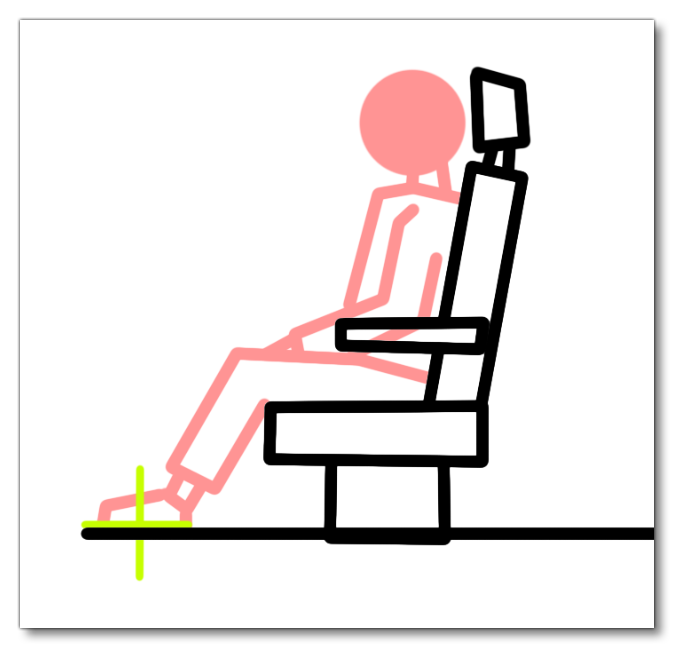
The normal process is to create the node on an attach point within the aircraft model, and then supply an interactive object to spawn the seat logic object which will control the pilot interactions with the seat, doors, and the seatbelt. This logic object will require the tagged node PILOT, and the optional COPILOT node tag. This object is explained in detail on the following page:
The navigation_graph_pilot.cfg for your aircraft will also require the following tagged nodes to be able to override The Default Pilot Navigation Graph (which is recommended):
-
SPAWN_EXTERIOR
A single node that defines where the pilot avatar will spawn when leaving the aircraft. This node should be placed on the ground (you can use theprojectOnGroundparameter for this), and be close to the aircraft to ensure that the pilot spawns correctly.-
SPAWN_EXTERIOR_*
This is an optional node that may be used to spawn the pilot avatar somewhere else, depending on the interactions that have been setup for entering/exiting the aircraft. Normally this is used for aircraft that have left and right doors, both of which can be opened, so - for example - you would haveSPAWN_EXTERIORon the left of the aircraft, andSPAWN_EXTERIOR_SECONDon the right, but you can set up multiple additional spawn points if required and then reference them individually in the interaction file.
-
-
SPAWN_EXTERIOR_RTC
This is a single node which is used at the end of the RTC walking event - or, when this RTC doesn't exist - to spawn the pilot into the world when on a career activity or any other flight except free-flight. This node should be about 2 meters from the nose of the aircraft and the character animation for the pilot will start approximately 4m away from this node (see the image in the Calculating Career / RTC Spawn Position section)
-
PILOT_SEAT
This node is required if you wish to overwrite the default pilot navigation graph (which is recommended). To overwrite the default node you will need to addPILOT_SEATinto your pilot navigation graph, and then have it spawn a seat logic object which has been setup correctly to deal with pilot interactions and seatbelts (see Aircraft Seats And Seatbelts for details).
-
COPILOT_SEAT
This node is required if you wish the aircraft to have a copilot. Adding theCOPILOT_SEATnode into your pilot navigation graph, means it should spawn a seat logic object which has been setup correctly to deal with copilot interactions and seatbelts (see Aircraft Seats And Seatbelts for details).
Weight Distribution
For the pilot (and copilot) weight to be included in the simulation and contribute to the overall weight of the aircraft, you will need to configure a station_load.N section (found in the flight_model.cfg) for each of them. When creating the stations, the weight input for the station load should be set to 0, as it will be modified by the pilot and copilot themselves in the simulation to reflect the actual weight being distributed in the area. The X/Y/Z position should be in the approximate center of each of the seats for the pilot and copilot.
Having created the station loads, they will need to be assigned to Mass Sections, which are created in the Navigation Graph. Each mass section should have a name that represents the station it is assigned to (pilot/copilot), and its fill proportion should be set to 1. When it comes to the maximum mass, the average weight per-person would be approximately 85kg, so setting the max weight to this or a little more should give a decent starting point for the weight calculations.
Once the mass sections have been set up, they will need to be added into the Main Graph section of the navigation graph, and it will also need to be added to the Mass Section parameter for the PILOT node (and COPILOT node if required).
Calculating Career / RTC Spawn Position
When it comes to calculating the position of the SPAWN_EXTERIOR_RTC node, it can be a little difficult to know exactly where around the aircraft it should be placed. The general rule is that the SPAWN_EXTERIOR_RTC node should be about 2m from the aircraft, since the RTC camera will follow the pilot as it walks to the node (and this walk will be over the space of approximately 4m) and then end on reaching the node. You can place the node "by eye", but it's better not to leave things to chance and so the best way to calculate the position is as follows:
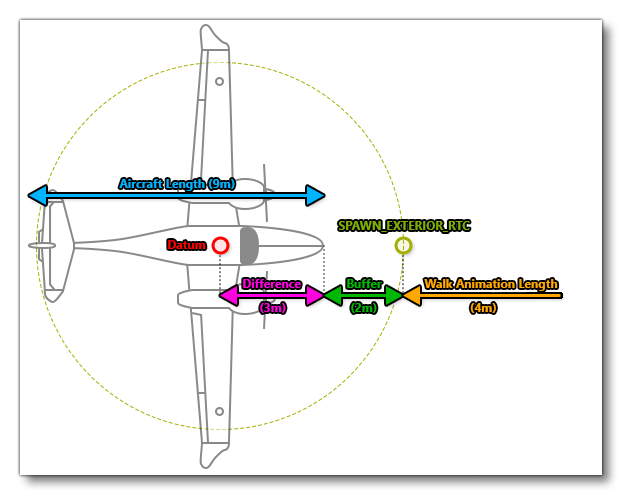
The node needs to be placed relative to the Datum Reference Point point, which is the (0, 0, 0) position. Knowing the length of the aircraft and the position of the datum means you can calculate where the nose of the aircraft is. From there you can add a 2m "buffer zone" (which is required in case the model isn't exactly where you'd expect it to be), and then place the SPAWN_EXTERIOR_RTC. Note that the node doesn't have to fall directly in front of the aircraft, and can be placed approximately anywhere around the marked circle, as long as the walk animation does not cross any part of the aircraft (for example, you can't place it such that the animation would walk through the aircraft wing).
FLT File Setup
As part of setting up the aircraft for careers and making use of the transversal navigation graph and pilot services, you will also need to ensure that some specific sections and parameters are set up in the various FLT files that are used in a flight. These files are required to ensure that the activity start goes correctly, and also to ensure that things work after a Skip or a Back-On-Track event.
The sections below list each of the files that are required and the parameters that need to be set. Note that some career activities will need additional setup
hangar.flt
- Section
[SimVars.0]must have the parameterSimOnGroundset totrue.
apron.flt
- Section
[SimVars.0]must have the parameterSimOnGroundset totrue. - All defined
[Covers]need to be set totrue(see here for more information). - Section
[Controls.0]must have the parameterParkingBrakeset to 100.00 (if the aircraft has a parking brake). - Aircraft electrics must be turned off.
- When turning on the Aircraft using the shortcut (
Ctrl+E), all the elements an aircraft needs for flight must switch on (Engine, Avionics, Communication system, etc…)
taxi.flt
- Section
[SimVars.0]must have the parameterSimOnGroundset totrue. - All defined
[Covers]need to be set tofalse(see here for more information). - Section
[Controls.0]must have the parameterParkingBrakeset to 100.00 (if the aircraft has a parking brake). - Aircraft electrics must be turned off.
- All the elements an aircraft needs for flight must be on (Engine, Avionics, Communication system, etc…)
runway.flt
- Section
[SimVars.0]must have the parameterSimOnGroundset totrue. - All defined
[Covers]need to be set tofalse(see here for more information). - Section
[Controls.0]must have the parameterParkingBrakeset to 100.00 (if the aircraft has a parking brake).
climb.flt / cruise.flt / approach.flt / final.flt
- Section
[SimVars.0]must have the parameterSimOnGroundset tofalse. - All defined
[Covers]need to be set tofalse(see here for more information). - Other sections of the aircraft configuration in the FLT file must be set up correctly so that the aircraft won't fall from the sky or put the pilot in a "dangerous" situation.
The Default Pilot Navigation Graph
When setting up your aircraft for MSFS 2024, it is important to talk about the default pilot graph that is added to all aircraft in the simulation. This file is added to ensure backwards compatibility for Microsoft Flight Simulator 2020 aircraft, and will be applied to all aircraft in the following way:
- The default pilot navigation graph is loaded.
- If there is a custom pilot navigation graph for the aircraft this is then loaded, but not applied.
- The simulation will then parse the custom navigation graph nodes looking for nodes with the same tags as those found in the default graph.
- If two nodes with the same tags are found, the data of the second node will replace the data of the first one.
- The final merged file is applied.
IMPORTANT! The default pilot navigation graph is designed for legacy aircraft only and should not be used in Microsoft Flight Simulator 2024 aircraft. It is included here for completness.
For example, say we have this in the default pilot navigation graph:
[Node.0]
tag = PILOT
pos = 0,2,3
rot = 0,0,90
interactiveObject = DEFAULT_SEAT
But in the pilot navigation graph included with the aircraft we have this:
[Node.3]
tag = PILOT
pos = 1,0.5,0
interactiveObject = SPECIFIC_SEAT
After the merge process has finished there will be one pilot navigation graph that has this:
[Node.x]
tag = PILOT
pos = 1,0.5,0
rot = 0,0,90
interactiveObject = SPECIFIC_SEAT
The default navigation graph has the following nodes:
SPAWN_EXTERIOR- Exterior spawn point for the pilot avatar.
SPAWN_EXTERIOR_RTC- Exterior spawn point for the pilot used for RTC events.
PILOT_SEAT- This is where the seat logic object will be spawned, which has it's own navigation graph with thePILOTnode. The seat logic object is a SimObject that has no model associated with it, and is used to simply spawn a default seat-belt SimObject and generate interactions using Interaction XML. The exact series of events for this are as follows:
- The
PILOT_SEATnode has the interactiveObject parameter which will spawn theSEAT_DEFAULT_PilotSimObject.
- The
SEAT_DEFAULT_PilotSimObject is a seat logic object and contains no model, only a navigation graph file -navigation_graph_seat_pilot.cfg.
- The
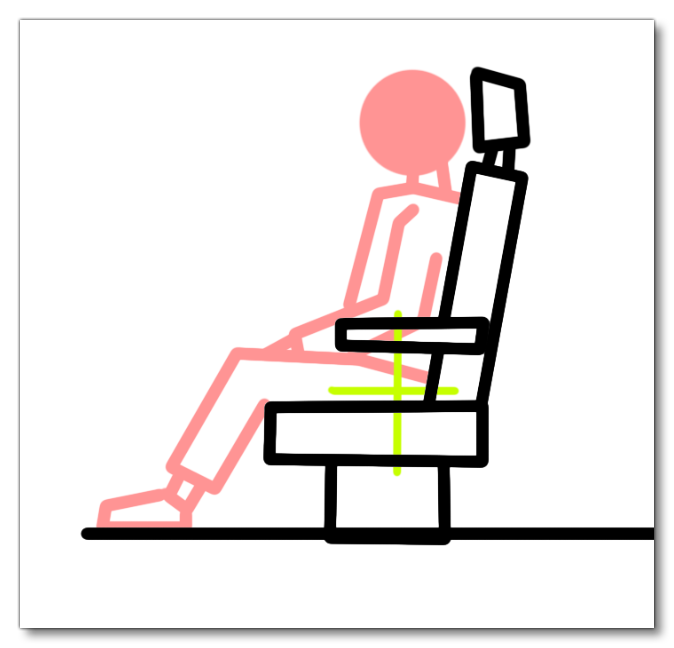
navigation_graph_seat_pilot.cfgcontains thePILOTnode, and also references a couple of Interaction Presets:Seat_pilot_enterandSeat_pilot_exit. These presets control the interaction between the user pilot avatar and the entry/exit of the aircraft, and do not trigger any aircraft animations, simply "teleporting" the pilot avatar inside/outside when an interaction is detected. It is worth noting that thePILOTnode will also use themodelNodeparameter withPILOT_0for the node name. This is to position the pilot avatar correctly on the seats, since legacy aircraft had the root node positioned on the avatar waist, not the feet, and are expected to have aPILOT_0(andPILOT_1for copilot) node in the model glTF. The legacy node position is illustrated in the following image:
- The
It is recommended that you override these nodes in your aircraft pilot navigation graph since these are not meant to be used except for legacy aircraft and initial testing of Microsoft Flight Simulator 2024 aircraft. This is because the placement of the nodes may not match that of your own aircraft and will potentially spawn objects that cause issues with your own aircraft attachments and interactions.
Related Topics